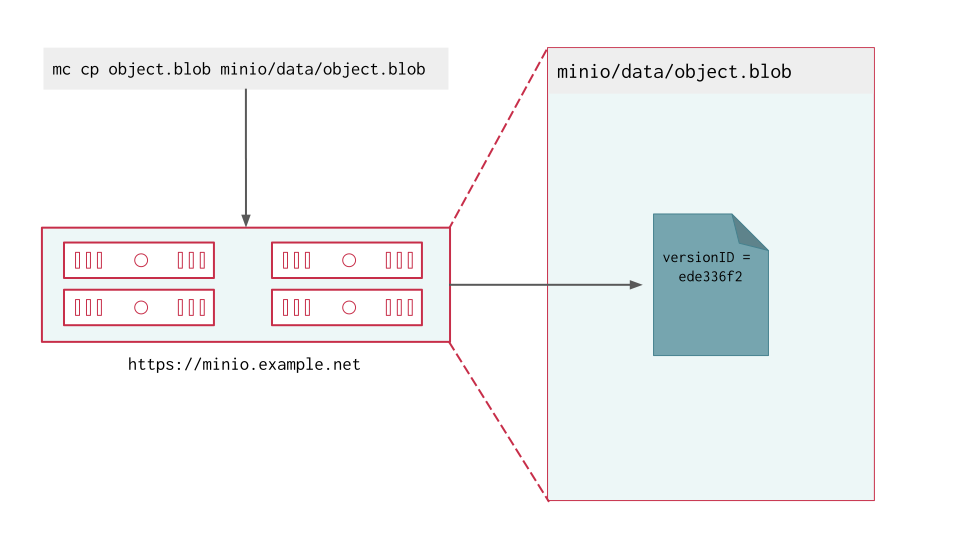
Object with Single Version
MinIO adds a unique version ID to each object as part of write operations.
This is the multi-page printable view of this section. .
An object is binary data, such as images, audio files, spreadsheets, or even binary executable code. The term “Binary Large Object” or “blob” is sometimes associated to object storage, although blobs can be anywhere from a few bytes to several terabytes in size. Object Storage platforms like MinIO provide dedicated tools and capabilities for storing, listing, and retrieving objects using a standard S3-compatible API.
Exclusive access to drives
MinIO requires exclusive access to the drives or volumes provided for object storage. No other processes, software, scripts, or persons should perform any actions directly on the drives or volumes provided to MinIO or the objects or files MinIO places on them.
Unless directed by MinIO Engineering, do not use scripts or tools to directly modify, delete, or move any of the data shards, parity shards, or metadata files on the provided drives, including from one drive or node to another. Such operations are very likely to result in widespread corruption and data loss beyond MinIO’s ability to heal.
MinIO Object Storage uses buckets to organize objects. A bucket is similar to a top-level drive, folder, or directory in a filesystem (/mnt/data or C:\), where each bucket can hold an arbitrary number of objects.
The structure of objects on the MinIO server might look similar to the following:
With the example structure, an administrator would create the /images, /videos and /articles buckets. Client applications write objects to those buckets using the full “path” to that object, including all intermediate prefixes.
MinIO supports multiple levels of nested directories and objects using prefixes to support even the most dynamic object storage workloads. MinIO automatically infers the intermediate prefixes, such as /articles/john.doe from the full object path using / as a delimiter. Clients and administrators should not create these prefixes manually.
Neither clients nor administrators would manually create the intermediate prefixes, as MinIO automatically infers them from the object name.
MinIO supports both path-style (default) or virtual-host bucket lookups.
For example, consider a MinIO deployment with an assigned Fully Qualified Domain Name (FQDN) of minio.example.net:
minio.example.net/mybucket.mybucket.minio.example.net/.Some applications may require or expect virtual-host lookup support when performing S3 operations against MinIO. To enable virtual-host bucket lookup, you must set the MINIO_DOMAIN environment variable to a FQDN that resolves to the MinIO Deployment.
If you configure MINIO_DOMAIN, you must consider all subdomains of the specified FQDN as exclusively assigned for use as bucket names. Any MinIO services which conflict with those domains, such as replication targets, may exhibit unexpected or undesired behavior as a result of the collision.
For example, if setting MINIO_DOMAIN=minio.example.net, you cannot assign any subdomains of minio.example.net (in the form of *.minio.example.net) to any MinIO service or target. This includes hostnames for use with bucket, batch, or site replication.
Important
For deployments with TLS enabled, you must ensure your TLS certificate SANs cover all subdomains of the leftmost domain specified to MINIO_DOMAIN.
For example, the example of MINIO_DOMAIN=minio.example.net requires a TLS SAN that covers the subdomains of minio.example.net. You can set an additional TLS SAN of *.minio.example.net to appropriately cover the subdomain namespace.
TLS Wildcard rules prevent chaining to additional subdomain levels, such that a TLS certificate with a wildcard SAN of *.example.net would not cover the virtual host lookups at *.minio.example.net.
Administrators typically control the creation and configuration of buckets. Client applications can then use S3-compatible SDKs to create, list, retrieve, and delete objects on the MinIO deployment. Clients therefore drive the overall hierarchy of data within a given bucket or prefix, where Administrators can exercise control using policies to grant or deny access to an action or resource.
MinIO has no hard thresholds on the number of buckets, objects, or prefixes on a given deployment. The relative performance of the hardware and networking underlying the MinIO deployment may create a practical limit to the number of objects in a given prefix or bucket. Specifically, hardware using slower drives or network infrastructures tend to exhibit poor performance in buckets or prefixes with a flat hierarchy of objects. For other considerations, thresholds, or limitations to keep in mind, see Thresholds and Limits.
Consider the following points as general guidance for client applications workload patterns:
MinIO SUBNET Enterprise accounts can utilize yearly architecture reviews as part of the deployment and maintenance strategy to ensure long-term performance and success of your MinIO-dependent projects.
For a deeper discussion on the benefits of limiting prefix contents, see the article on optimizing S3 performance.
Note
MinIO does not support the \ or : characters in object names, regardless of support for those characters in Windows filesystems. Use / as a delimiter in object names to have MinIO automatically create a folder structure using prefixes.
The specific client behavior on write, list, get, or delete operations on a bucket depends on the versioning state of that bucket:
Operation |
Versioning Enabled |
Versioning Disabled | Suspended |
|---|---|---|
|
Create a new full version of the object as the “latest” and assign a unique version ID |
Create the object with overwrite on namespace match. |
|
Retrieve the latest version of the object by default Supports retrieving retrieving any object version by version ID. |
Retrieve the object |
|
Retrieve the latest version of objects at the specified bucket or prefix Supports retrieving all objects with their associated version ID. |
Retrieve all objects at the specified bucket or prefix |
|
Creates a 0-byte “Delete Marker” for the object as “latest” (soft delete) Supports deleting any object version by version ID (hard delete). You cannot undo hard-delete operations. Refer to Object Deletion for more information. |
Deletes the object |
See Bucket Versioning for more complete documentation.
MinIO supports adding custom tags to an object. A tag is a key-value pair included in the metadata of an object. Tags can be used to control access with policies or locate an object with mc find --tags.
MinIO supports adding up to 10 custom tags to an object.
For more on setting tags, refer to mc tag set.
MinIO Object Locking (“Object Retention”) enforces Write-Once Read-Many (WORM) immutability to protect versioned objects from deletion. MinIO supports both duration based object retention and indefinite legal hold retention.
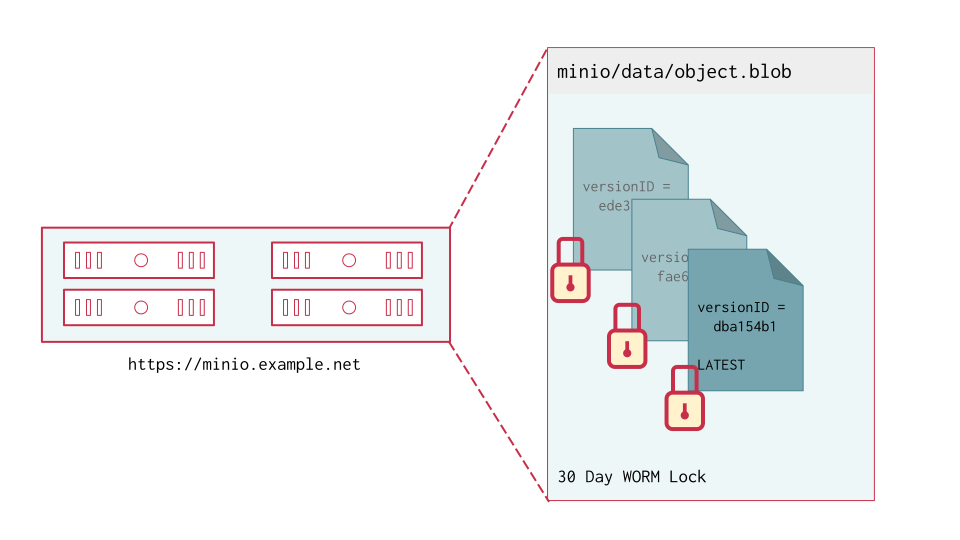
Delete operations against a WORM-locked object depend on the specific operation:
You can only enable object locking when first creating a bucket. Enabling bucket locking also enables versioning.
MinIO Object Locking provides key data retention compliance and meets SEC17a-4(f), FINRA 4511(C), and CFTC 1.31(c)-(d) requirements as per Cohasset Associates.
See MinIO Object Locking and Object Deletion for more complete documentation.
MinIO Object Lifecycle Management allows creating rules for time or date based automatic transition or expiry of objects. For object transition, MinIO automatically moves the object to a configured remote storage tier. For object expiry, MinIO automatically deletes the object.
MinIO applies lifecycle management rules on versioned and unversioned buckets using the same behavior as normal client operations. You can specify transition or lifecycle rules that handle the latest object versions, non-current object versions, or both.
MinIO lifecycle management is built for behavior and syntax compatibility with AWS S3 Lifecycle Management. MinIO uses JSON to describe lifecycle management rules. Conversion to or from XML may be required for importing rules created on S3 or similar compatible platforms.
See Object Lifecycle Management for more complete documentation.
MinIO does not require that the target bucket match object management or versioning configurations with the source bucket. The target bucket may have its own set of object management rules, if defined with care.
Target buckets should not have their own rules for expiration or additional tiering. Expiration rules can result in removal of tiered data still in use by the source bucket. Tiering to an additional remote creates an additional network hop between the hot tier and it’s data while also increasing operational complexity.
You may configure object locking or versioning on the remote bucket.
Enabling versioning or object locking on the target bucket may have effects such as the following:
delete operations from the source bucket from completing.UUID, so versioning on the target bucket is redundant at best.delete operations result in creation of a DeleteMarker rather than freeing space.MinIO must have exclusive access to the target bucket. No other user, process, application, or resource should have any access to or perform any actions against the target bucket.
All access to the transitioned objects must occur through MinIO via S3 API operations only. Manually modifying a transitioned object - whether the metadata on the “hot” MinIO tier or the object data on the remote “warm/cold” tier - may result in loss of that object data.
MinIO ignores any objects in the remote bucket or bucket prefix not explicitly managed by the MinIO deployment. Automatic transition and transparent object retrieval depend on the following assumptions:
To facilitate this exclusive access, grant the lifecycle management user read, write, and delete access to the target bucket in its policy. All other policies should deny access to the target bucket.
Applications must assign non-conflicting, unique keys for all objects. This includes avoiding creating objects where the name can collide with that of a parent or sibling object. MinIO returns an empty set for LIST operations at the location of the collision.
For example, the following operations create a namespace conflicts
While you can perform GET or HEAD operations against these objects, the name collision causes LIST operations to return an empty result set at the /invoices/2024/january path.
MinIO supports keeping multiple “versions” of an object in a single bucket.
When enabled, versioning allows MinIO to keep multiple iterations of the same object. Write operations which would normally overwrite an existing object instead result in the creation of a new versioned object. MinIO versioning protects from unintended overwrites and deletions while providing support for “undoing” a write operation. Bucket versioning is a prerequisite for configuring object locking and retention rules.
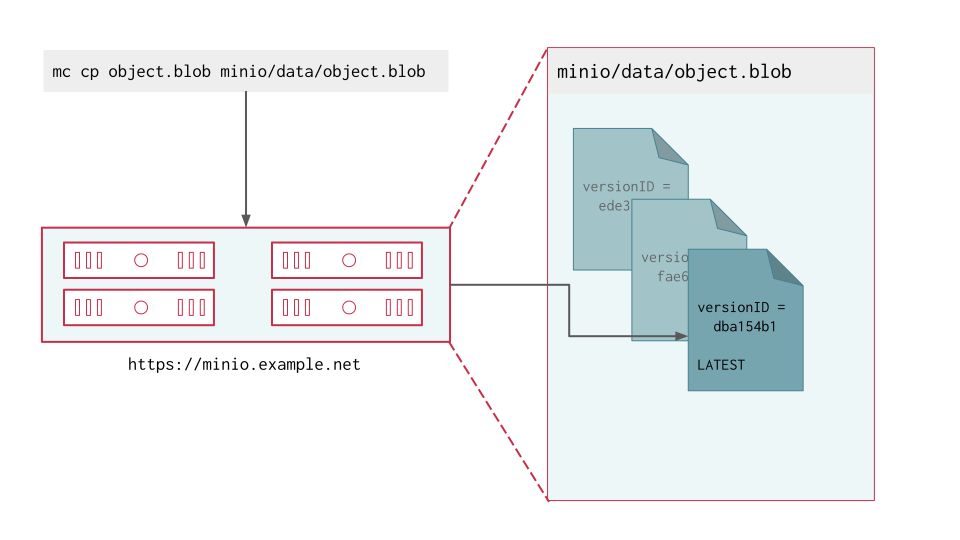
For versioned buckets, a write operation results in a new version of that object with a unique version ID. MinIO marks the “latest” version of the object that clients retrieve by default. Clients can then explicitly choose to list, retrieve, or remove a specific object version.
Define object expiration rules to remove versions of objects no longer needed, such as by the number of versions or the date of versions.
Review each of the four images in this series to see how MinIO retrieves objects in a versioned bucket. Use the arrows on either side of the images to navigate from one to the next.
MinIO adds a unique version ID to each object as part of write operations.
MinIO retains all versions of an object and marks the most recent version as the “latest”.
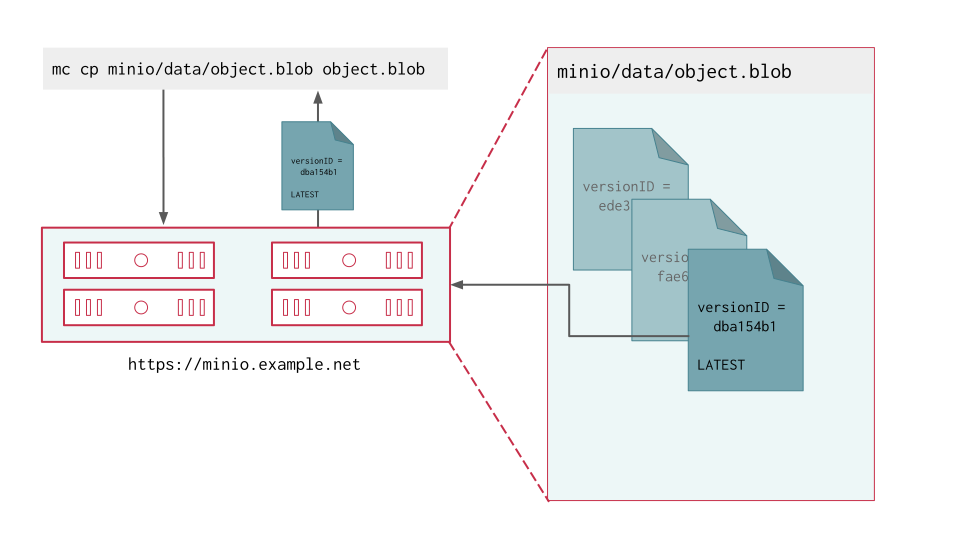
A read operation request without a version ID returns the latest version of the object.
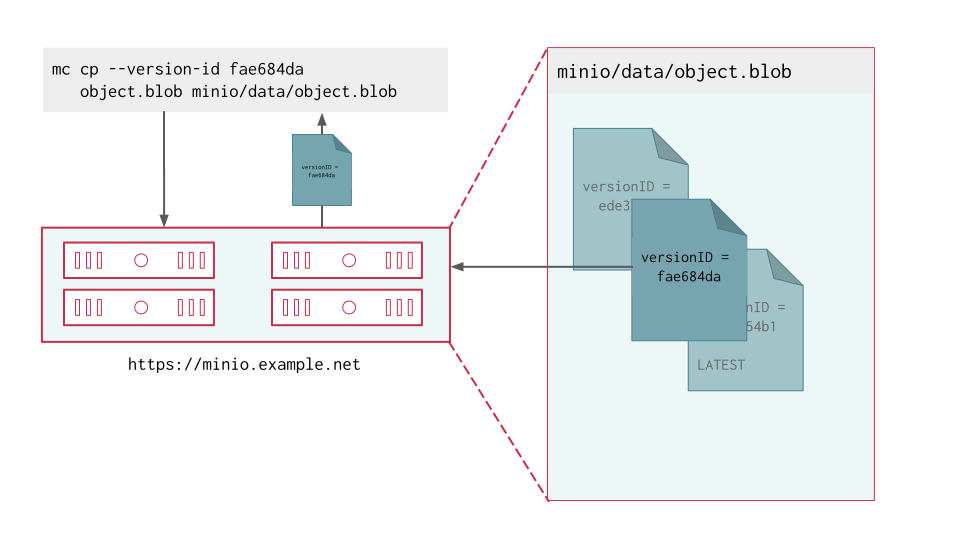
Include the version ID to retrieve a specific version of an object during a read operation.
Changed: MinIO
Server RELEASE.2023-05-04T21-44-30Z
MinIO does not create versions for creation, mutation, or deletion of explicit directory objects (“prefixes”). Objects created within that explicit directory object retain normal versioning behavior.
MinIO implicitly determines prefixes from object paths. Explicit prefix creation typically only occurs with Spark and similar workloads which apply legacy POSIX/HDFS directory creation behavior within the S3 context.
MinIO uses the full namespace (the bucket and path to an object) for each object as part of determining object uniqueness. For example, all of the following namespaces are “unique” objects, where mutations of each object result in the creation of new object versions at that namespace:
While object.blob might be the same binary across all namespaces, MinIO only enforces versioning with a specific namespace and therefore considers each object.blob above as distinct and unique.
MinIO does not perform incremental or differential-type versioning. For mutation-heavy workloads, this may result in substantial drive usage by older or aged object versions.
For example, consider a 1GB object containing log data. An application appends 100MB of data to the log and uploads to MinIO. MinIO would then contain both the 1GB and 1.1GB versions of the object. If the application repeated this process every day for 10 days, the bucket would eventually contain more than 14GB of data associated to a single object.
MinIO supports configuring configuring object lifecycle management rules to automatically expire or transition aged object versions and free up storage capacity. For example, you can configure a rule to automatically expire object versions 90 days after they become non-current (i.e. no longer the “latest” version of that object). See MinIO Object Expiration for more information.
You can alternatively perform manual removal of object versions using the following commands:
mc rm --versions - Removes all versions of an object.
mc rm --versions --older-than -
Removes all versions of an object older than the specified calendar date.
Added: RELEASE.2024-04-18T19-09-19Z
MinIO emits a warning if the cumulative size of versions for any single object exceeds 1TiB.
MinIO generates a unique and immutable identifier for each versioned object as part of write operations. Each object version ID consists of a 128-bit fixed-size UUIDv4. UUID generation is sufficiently random to ensure high likelihood of uniqueness for any environment, are computationally difficult to guess, and do not require centralized registration process and authority to guarantee uniqueness.
MinIO does not support client-managed version ID allocation. All version ID generation is handled by the MinIO server process.
For objects created while versioning is disabled or suspended, MinIO uses a null version ID. You can access or remove these objects by specifying null as the version ID as part of S3 operations.
Performing a DELETE operation on a versioned object creates a 0-byte DeleteMarker as the latest version of that object. For objects where the latest version is a DeleteMarker, clients must specify versioning flags or identifiers to perform GET/HEAD/LIST/DELETE operations on a prior version of that object. The default server behavior omits DeleteMarker objects from consideration for unversioned operations.
MinIO can utilize Lifecycle Management expiration rules to automatically remove versioned objects permanently. Otherwise, use manual DELETE operations to permanently remove non-current versioned objects or DeleteMarker objects.
MinIO Implements Idempotent Delete Markers
Changed: RELEASE.2022-08-22T23-53-06Z
Standard S3 implementations can create multiple sequential delete markers for the same object when processing simple DeleteObject requests with no version identifier. See the S3 docs for details on managing delete markers.
MinIO diverges from standard S3 implementation by avoiding this potential duplication of delete markers. When processing a Delete request with no version identifier, MinIO creates at most one Delete Marker for the specified object. MinIO does not share S3’s behavior in creating multiple sequential delete markers.
To permanently delete an object version, perform the DELETE operation and specify the version ID of the object to delete. Versioned delete operations are irreversible.
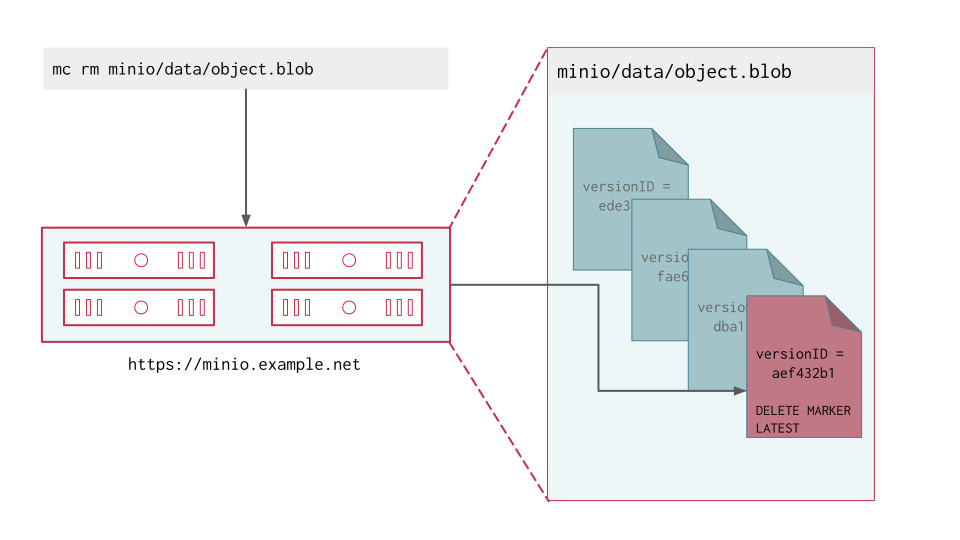
Performing a DELETE operation on a versioned object produces a DeleteMarker for that object.
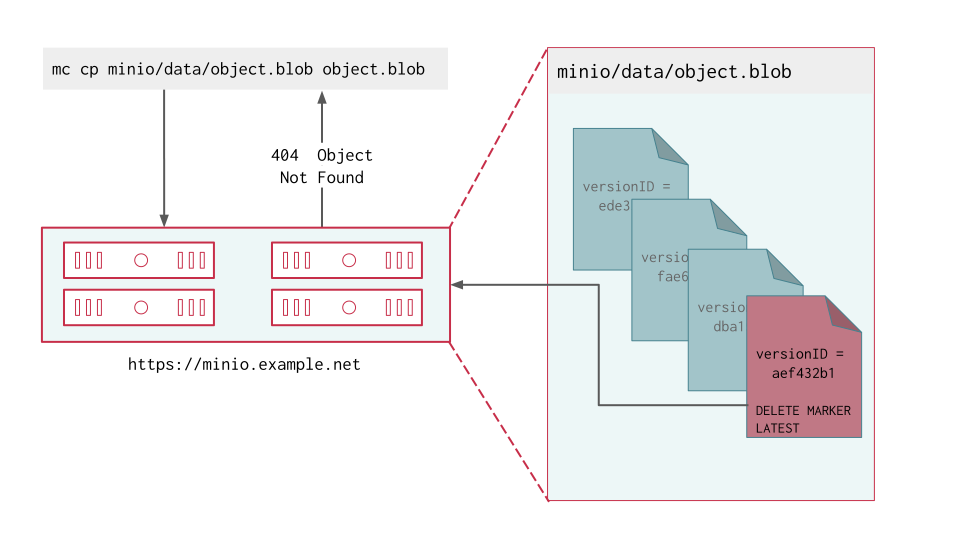
Clients by default retrieve the “latest” object version. MinIO returns a 404-like response if the latest version is a DeleteMarker.
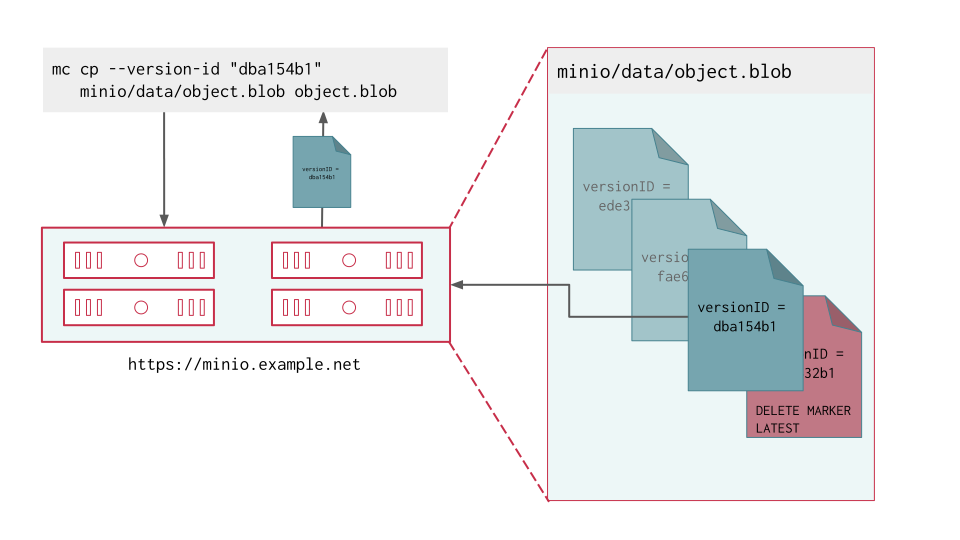
Clients can retrieve any previous version of the object by specifying the version ID, even if the “Latest” version is a DeleteMarker.
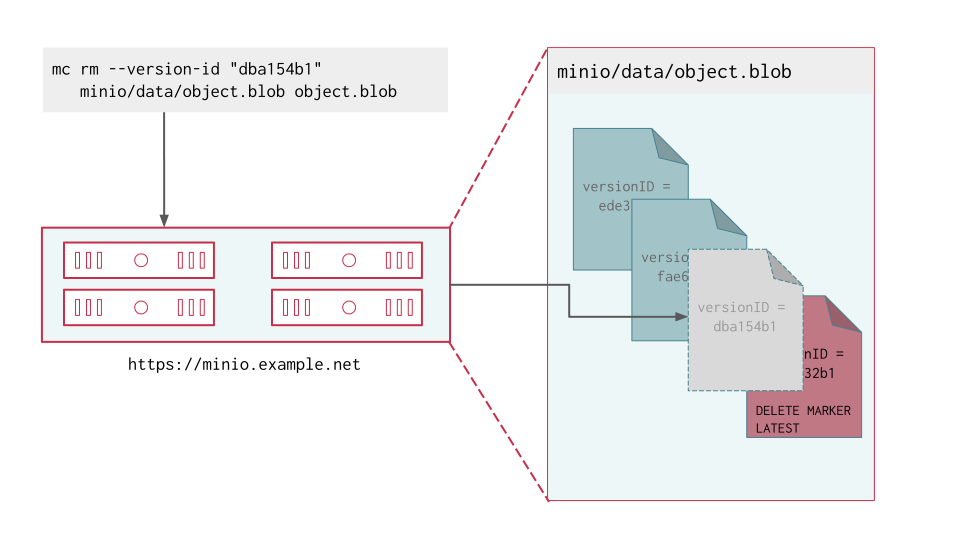
Clients can delete a specific object version by specifying the version ID as part of the DELETE operation. Deleting a specific version is permanent and does not result in the creation of a DeleteMarker.
The following mc commands operate on DeleteMarkers or versioned objects:
mc ls --versions to view all versions of an object, including delete markers.mc cp --version-id=UUID ... to retrieve the version of the “deleted” object with matching UUID.mc rm --version-id=UUID ... to delete the version of the object with matching UUID.mc rm --versions to delete all versions of an object.You can enable versioning using the MinIO Console, the MinIO mc CLI, or using an S3-compatible SDK.
Use the mc version enable command to enable versioning on an existing bucket:
ALIAS with the alias of a configured MinIO deployment.BUCKET with the target bucket on which to enable versioning.Objects created prior to enabling versioning have a null version ID.
You can exclude certain prefixes from versioning using the MinIO Client. This is useful for Spark/Hadoop workloads or others that initially create objects with temporary prefixes.
Replication and Object Locking Require Versioning
MinIO requires versioning to support replication. Objects in excluded prefixes do not replicate to any peer site or remote site.
MinIO does not support excluding prefixes from versioning on buckets with object locking enabled.
Use mc version enable with the --excluded-prefixes option:
The list of --excluded-prefixes prefixes match all objects containing the specified strings in their prefix or name, similar to a regular expression of the form prefix*. To match objects by prefix only, use prefix/*.
For example, the following command excludes any objects containing _test or _temp in their prefix or name from versioning:
You can exclude up to 10 prefixes for each bucket. To add or remove prefixes, repeat the mc version enable command with an updated list. The new list of prefixes replaces the previous one.
To view the currently excluded prefixes, use mc version info with the --json option:
The command output resembles the following, with the list of excluded prefixes in the ExcludedPrefixes property:
To disable prefix exclusion and resume versioning all prefixes, repeat the mc version enable command without --excluded-prefixes:
You can exclude folders from versioning using the MinIO Client.
Replication and Object Locking Require Versioning
MinIO requires versioning to support replication. Objects in excluded folders do not replicate to any peer site or remote site.
MinIO does not support excluding folders from versioning on buckets with object locking enabled.
Object locking
Buckets with object locking enabled require versioning and do not support excluding folders.
Use mc version enable with the --exclude-folders option to exclude objects with names ending in / from versioning:
To check whether folders are versioned for a bucket, use the mc version enable command with the --json option. If the ExcludeFolders property is true, folders in that bucket are not versioned.
The command output resembles the following:
To disable folder exclusion and resume versioning all folders, repeat the mc version enable command without --exclude-folders:
You can suspend bucket versioning at any time using he MinIO mc CLI or using an S3-compatible SDK.
Use the mc version suspend command to enable versioning on an existing bucket:
ALIAS with the alias of a configured MinIO deployment.BUCKET with the target bucket on which to disable versioning.Objects created while versioning is suspended are assigned a null version ID. Any mutations to an object while versioning is suspended result in overwriting that null versioned object. MinIO does not remove or otherwise alter existing versioned objects as part of suspending versioning. Clients can continue interacting with any existing object versions in the bucket.
The procedure on this page creates a new object lifecycle management rule that transitions objects from a bucket on a primary MinIO deployment to a bucket on a remote MinIO deployment. This procedure supports cost-management strategies such as tiering objects from a “hot” MinIO deployment using NVMe storage to a “warm” MinIO deployment using SSD.
mc
This procedure uses mc for performing operations on the MinIO cluster. Install mc on a machine with network access to both source and destination clusters. See the mc Installation Quickstart for instructions on downloading and installing mc.
Use the mc alias set command to create an alias for the source MinIO cluster. Alias creation requires specifying an access key for a user on the source and destination clusters. The specified users must have permissions for configuring and applying transition operations.
MinIO requires the following permissions scoped to the bucket or buckets for which you are creating lifecycle management rules.
MinIO also requires the following administrative permissions on the cluster in which you are creating remote tiers for object transition lifecycle management rules:
For example, the following policy provides permission for configuring object transition lifecycle management rules on any bucket in the cluster:
Object transition lifecycle management rules require additional permissions on the remote storage tier. Specifically, MinIO requires the remote tier credentials provide read, write, list, and delete permissions for the remote bucket.
For example, the following policy on the remote MinIO deployment provides the necessary permission for transitioning objects into and out of the remote tier:
Modify the Resource for the bucket into which MinIO tiers objects.
Refer to the Access Management documentation for more complete guidance on configuring the required permissions.
Create the remote bucket prior to configuring lifecycle management tiers or rules using that bucket as the target.
If the remote bucket contains existing data, use the prefix feature to isolate transitioned objects from any other objects on that bucket.
MinIO uses a scanner process to check objects against all configured lifecycle management rules. Slow scanning due to high IO workloads or limited system resources may delay application of lifecycle management rules.
MinIO requires exclusive access to the transitioned data on the remote storage tier. Object metadata on the “hot” MinIO source is strongly linked to the object data on the “warm/cold” remote tier. MinIO cannot retrieve object data without access to the remote, nor can the remote be used to restore lost metadata on the source.
All access to the transitioned objects must occur through MinIO via S3 API operations only. Manually modifying a transitioned object - whether the metadata on the “hot” MinIO tier or the object data on the remote “warm/cold” tier - may result in loss of that object data.
MinIO ignores any objects in the remote bucket or bucket prefix not explicitly managed by the MinIO deployment. Automatic transition and transparent object retrieval depend on the following assumptions:
MinIO stores all transitioned objects in the remote storage bucket or resource under a unique per-deployment prefix value. This value is not intended to support identifying the source deployment from the backend. MinIO supports an additional optional human-readable prefix when configuring the remote target, which may facilitate operations related to diagnostics, maintenance, or disaster recovery.
MinIO recommends specifying this optional prefix for remote storage tiers which contain other data, including transitioned objects from other MinIO deployments. This tutorial includes the necessary syntax for setting this prefix.
MinIO tiering behavior depends on the remote storage returning objects immediately (milliseconds to seconds) upon request. MinIO therefore cannot support remote storage which requires rehydration, wait periods, or manual intervention.
MinIO creates metadata for each transitioned object that identifies its location on the remote storage. Applications cannot trivially identify and access a transitioned object independent of MinIO. Availability of the transitioned data therefore depends on the same core protections that erasure coding and distributed deployment topologies provide for all objects on the MinIO deployment. Using object transition does not provide any additional business continuity or disaster recovery benefits.
Workloads that require BC/DR protections should implement MinIO Server-Side replication. Replication ensures objects remains preserved on the remote replication site, such that you can resynchronize from the remote in the event of partial or total data loss. See Resynchronization (Disaster Recovery) for more complete documentation on using replication to recover after partial or total data loss.
This step creates users and policies on the MinIO deployment for supporting lifecycle management operations. You can skip this step if the deployment already has users with the necessary permissions.
The following example uses Alpha as a placeholder alias for the MinIO deployment. Replace this value with the appropriate alias for the MinIO deployment on which you are configuring lifecycle management rules. Replace the password LongRandomSecretKey with a long, random, and secure secret key as per your organizations best practices for password generation.
This example assumes that the specified aliases have the necessary permissions for creating policies and users on the deployment. See User Management and MinIO Policy Based Access Control for more complete documentation on MinIO users and policies respectively.
Use the mc ilm tier add command to add the remote MinIO deployment as the new remote storage tier:
The example above uses the following arguments:
Argument |
Description |
|---|---|
The |
|
The name to associate with the new MinIO remote storage tier. Specify the
name in all-caps, e.g. |
|
The URL endpoint for the MinIO storage backend. |
|
The access key MinIO uses to access the bucket. The access key must correspond to an IAM user with the required permissions. |
|
The corresponding secret key for the specified |
|
The name of the bucket on the remote MinIO deployment to which the |
|
The optional bucket prefix within which MinIO transitions objects. MinIO stores all transitioned objects in the specified MinIO recommends specifying this optional prefix for remote storage tiers which contain other data, including transitioned objects from other MinIO deployments. This prefix should provide a clear reference back to the source MinIO deployment to facilitate ease of operations related to diagnostics, maintenance, or disaster recovery. |
|
The Erasure Coding storage class MinIO applies to objects transitions to the remote MinIO bucket. Specify one of the following supported storage classes:
|
|
The MinIO region of the specified MinIO deployments typically do not require setting a region as part of setup.
Only include this option if you explicitly set the |
Use the mc ilm rule add command to create a new transition rule for the bucket. The following example configures transition after the specified number of calendar days:
The example above specifies the following arguments:
Argument |
Description |
|---|---|
Specify the |
|
Specify the full path to the bucket for which you are creating the lifecycle management rule. |
|
The remote storage tier to which MinIO transitions objects. Specify the remote storage tier name created in the previous step. If you want to transition noncurrent object versions to a distinct
remote tier, specify a different tier name for
|
|
The number of calendar days after which MinIO marks an object as
eligible for transition. Specify the number of days as an integer,
e.g. |
|
The number of calendar days after which MinIO marks a noncurrent
object version as eligible for transition. MinIO specifically measures
the time since an object became non-current instead of the object
creation time. Specify the number of days as an integer,
e.g. Omit this value to ignore noncurrent object versions. This option has no effect on non-versioned buckets. |
Use the mc ilm rule ls command to review the configured transition rules:
MinIO Object Locking (“Object Retention”) enforces Write-Once Read-Many (WORM) immutability to protect versioned objects from deletion. MinIO supports both duration based object retention and indefinite legal hold retention.
MinIO Object Locking provides key data retention compliance and meets SEC17a-4(f), FINRA 4511(C), and CFTC 1.31(c)-(d) requirements as per Cohasset Associates.
MinIO versioning preserves the full history of object mutations. However, applications can explicitly delete specific object versions.
Applying a default 30 Day WORM lock to objects in the bucket ensures a minimum period of retention and protection for all object versions.
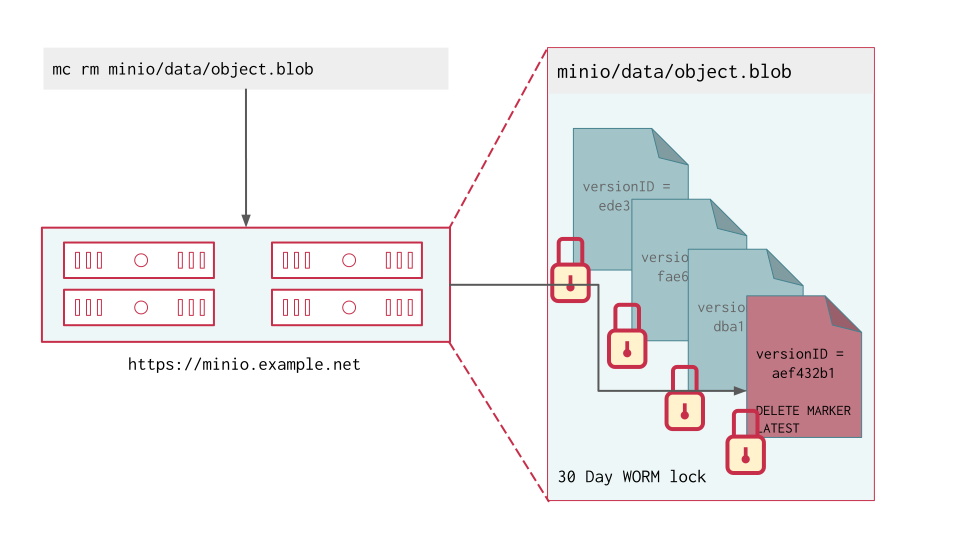
Delete operations follow normal behavior in versioned buckets, where MinIO creates a DeleteMarker for the object. However, non-Delete Marker versions of the object remain under the retention rules and are protected from any specific deletion or overwrite attempts.
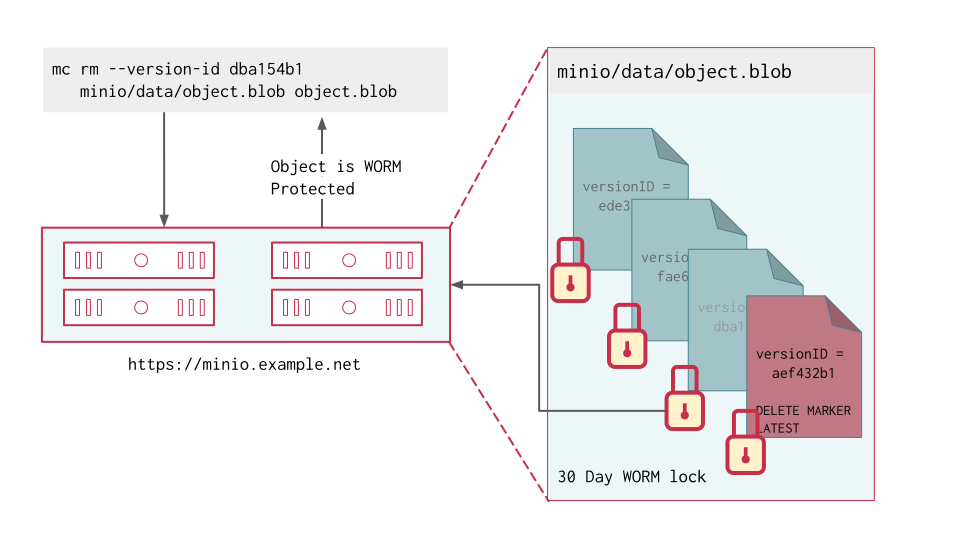
MinIO blocks any attempt to delete a specific object version held under WORM lock. The earliest possible time after which a client may delete the version is when the lock expires.
MinIO object locking is feature and API compatible with AWS S3. This page summarizes Object Locking / Retention concepts as implemented by MinIO. See the AWS S3 documentation on How S3 Object Lock works for additional resources.
You can only enable object locking during bucket creation as per S3 behavior. You cannot enable object locking on a bucket created without locking enabled. You can then configure object retention rules at any time. Object locking requires versioning and enables the feature implicitly.
Objects held under WORM locked are immutable until the lock expires or is explicitly lifted. Locking is per-object version, where each version is independently immutable.
If an application performs an unversioned delete operation on a locked object, the operation produces a delete marker. Attempts to explicitly delete any WORM-locked object fail with an error. Delete Markers are not eligible for protection under WORM locking. See the S3 documentation on Managing delete markers and object lifecycles for more information.
For example, consider the following bucket with GOVERNANCE Mode locking enabled by default:
Attempting to perform a delete on a specific version of data.csv fails due to the object locking settings:
Attempting to perform an unversioned delete on data.csv succeeds and creates a new DeleteMarker for the object:
MinIO object expiration respects any active object lock and retention settings for objects covered by the expiration rule.
For example, consider the following bucket with GOVERNANCE Mode locking enabled by default for 45 days:
Creating an expiration rule for current objects older than 7 days results in a Delete Marker for the object:
However, an expiration rule for non-current objects older than 7 days would only take effect after the configured WORM lock expires. Since the bucket has a 45 day GOVERNANCE retention set, only the v1 version of data.csv is unlocked and therefore eligible for deletion.
You must enable object locking during bucket creation as per S3 behavior. You can create a bucket with object locking enabled using the MinIO mc CLI or using an S3-compatible SDK.
Use the mc mb command with the --with-lock option to create a bucket with object locking enabled:
ALIAS with the alias of a configured MinIO deployment.BUCKET with the name of the bucket to create.You can configure object locking rules (“object retention”) using the MinIO mc CLI, or using an S3-compatible SDK.
MinIO supports setting both bucket-default and per-object retention rules. The following examples set bucket-default retention. For per-object retention settings, defer to the documentation for the PUT operation used by your preferred SDK.
Use the mc retention set command with the --recursive and --default options to set the default retention mode for a bucket:
MODE with either either COMPLIANCE or GOVERNANCE.DURATION with the duration for which the object lock remains in effect.ALIAS with the alias of a configured MinIO deployment.BUCKET with the name of the bucket on which to set the default retention rule.You can enable or disable indefinite legal hold retention for an object using the MinIO mc CLI or using an S3-compatible SDK.
You can place a legal hold on an object already held under a COMPLIANCE or GOVERNANCE lock. The object remains WORM locked under the legal hold even when the retention lock expires. You or another user with the necessary permissions must explicitly lift the legal hold to remove the WORM lock.
Use the mc legalhold set command to toggle the legal hold status on an object.
ALIAS with the alias of a configured MinIO deployment.PATH with the path to the object for which to enable the legal hold.MinIO implements the following S3 Object Locking Modes:
Mode |
Summary |
|---|---|
Prevents any operation that would mutate or modify the object or its locking settings by non-privileged users. Users with the MinIO lifts the lock automatically after the configured retention rule duration has passed. |
|
Prevents any operation that would mutate or modify the object or its locking settings. No MinIO user can modify the object or its settings, including the MinIO root user. MinIO lifts the lock automatically after the configured retention rule duration has passed. |
An object under GOVERNANCE lock is protected from write operations by non-privileged users.
GOVERNANCE locked objects enforce managed-immutability for locked objects, where users with the s3:BypassGovernanceRetention action can modify the locked object, change the retention duration, or lift the lock entirely. Bypassing GOVERNANCE retention also requires setting the x-amz-bypass-governance-retention:true header as part of the request.
The MinIO GOVERNANCE lock is functionally identical to the S3 GOVERNANCE mode.
An object under COMPLIANCE lock is protected from write operations by all users, including the MinIO root user.
COMPLIANCE locked objects enforce complete immutability for locked objects. You cannot change or remove the lock before the configured retention duration has passed.
The MinIO COMPLIANCE lock is functionally identical to the S3 COMPLIANCE mode.
An object under legal hold is protected from write operations by all users, including the MinIO root user.
Legal holds are indefinite and enforce complete immutability for locked objects. Only privileged users with the s3:PutObjectLegalHold permission can set or lift the legal hold.
Legal holds apply at the object level. If you enable legal hold for a group of objects, such as the contents of a bucket, subsequently created objects in that bucket are not affected.
Legal holds are complementary to both GOVERNANCE Mode and COMPLIANCE Mode retention settings. An object held under both legal hold and a GOVERNANCE/COMPLIANCE retention rule remains WORM locked until the legal hold is lifted and the rule expires.
For GOVERNANCE locked objects, the legal hold prevents mutating the object even if the user has the necessary privileges to bypass retention.
The procedure on this page creates a new object lifecycle management rule that transition objects from a MinIO bucket to a remote storage tier on the Amazon Web Services S3 storage backend or an S3-compatible service. This procedure supports use cases such as tiering objects to low-cost or archival storage after a certain time period or calendar date.
mc
This procedure uses mc for performing operations on the MinIO cluster. Install mc on a machine with network access to both source and destination clusters. See the mc Installation Quickstart for instructions on downloading and installing mc.
Use the mc alias set command to create an alias for the source MinIO cluster. Alias creation requires specifying an access key for a user on the source and destination clusters. The specified users must have permissions for configuring and applying transition operations.
MinIO requires the following permissions scoped to the bucket or buckets for which you are creating lifecycle management rules.
MinIO also requires the following administrative permissions on the cluster in which you are creating remote tiers for object transition lifecycle management rules:
For example, the following policy provides permission for configuring object transition lifecycle management rules on any bucket in the cluster:.
Object transition lifecycle management rules require additional permissions on the remote storage tier. Specifically, MinIO requires the remote tier credentials provide read, write, list, and delete permissions for the remote bucket.
For example, the following policy provides the necessary permission for transitioning objects into and out of the remote tier:
Modify the Resource for the bucket into which MinIO tiers objects.
Refer to the Amazon S3 Permissions documentation for more complete guidance on configuring the required permissions.
Create the remote S3 bucket prior to configuring lifecycle management tiers or rules using that bucket as the target.
MinIO uses a scanner process to check objects against all configured lifecycle management rules. Slow scanning due to high IO workloads or limited system resources may delay application of lifecycle management rules. See Lifecycle Management Object Scanner for more information.
MinIO requires exclusive access to the transitioned data on the remote storage tier. Object metadata on the “hot” MinIO source is strongly linked to the object data on the “warm/cold” remote tier. MinIO cannot retrieve object data without access to the remote, nor can the remote be used to restore lost metadata on the source.
All access to the transitioned objects must occur through MinIO via S3 API operations only. Manually modifying a transitioned object - whether the metadata on the “hot” MinIO tier or the object data on the remote “warm/cold” tier - may result in loss of that object data.
MinIO ignores any objects in the remote bucket or bucket prefix not explicitly managed by the MinIO deployment. Automatic transition and transparent object retrieval depend on the following assumptions:
MinIO stores all transitioned objects in the remote storage bucket or resource under a unique per-deployment prefix value. This value is not intended to support identifying the source deployment from the backend. MinIO supports an additional optional human-readable prefix when configuring the remote target, which may facilitate operations related to diagnostics, maintenance, or disaster recovery.
MinIO recommends specifying this optional prefix for remote storage tiers which contain other data, including transitioned objects from other MinIO deployments. This tutorial includes the necessary syntax for setting this prefix.
MinIO tiering behavior depends on the remote storage returning objects immediately (milliseconds to seconds) upon request. MinIO therefore cannot support remote storage which requires rehydration, wait periods, or manual intervention.
MinIO creates metadata for each transitioned object that identifies its location on the remote storage. Applications cannot trivially identify and access a transitioned object independent of MinIO. Availability of the transitioned data therefore depends on the same core protections that erasure coding and distributed deployment topologies provide for all objects on the MinIO deployment. Using object transition does not provide any additional business continuity or disaster recovery benefits.
Workloads that require BC/DR protections should implement MinIO Server-Side replication. Replication ensures objects remains preserved on the remote replication site, such that you can resynchronize from the remote in the event of partial or total data loss. See Resynchronization (Disaster Recovery) for more complete documentation on using replication to recover after partial or total data loss.
This step creates users and policies on the MinIO deployment for supporting lifecycle management operations. You can skip this step if the deployment already has users with the necessary permissions.
The following example uses Alpha as a placeholder alias for the MinIO deployment. Replace this value with the appropriate alias for the MinIO deployment on which you are configuring lifecycle management rules. Replace the password LongRandomSecretKey with a long, random, and secure secret key as per your organizations best practices for password generation.
This example assumes that the specified aliases have the necessary permissions for creating policies and users on the deployment. See User Management and MinIO Policy Based Access Control for more complete documentation on MinIO users and policies respectively.
Use the mc ilm tier add command to add an Amazon S3 service as the new remote storage tier:
The example above uses the following arguments:
Argument |
Description |
|---|---|
The |
|
The name to associate with the new S3 remote storage tier. Specify the
name in all-caps, e.g. |
|
The URL endpoint for the S3 storage backend. |
|
The S3 access key MinIO uses to access the bucket. The access key must correspond to an IAM user with the required permissions. |
|
The corresponding secret key for the specified |
|
The name of the bucket on the S3 storage backend to which MinIO transitions objects. |
|
The optional bucket prefix within which MinIO transitions objects. MinIO stores all transitioned objects in the specified MinIO recommends specifying this optional prefix for remote storage tiers which contain other data, including transitioned objects from other MinIO deployments. This prefix should provide a clear reference back to the source MinIO deployment to facilitate ease of operations related to diagnostics, maintenance, or disaster recovery. |
|
The S3 storage class to which MinIO transitions objects. MinIO tiering behavior depends on the remote storage returning objects immediately (milliseconds to seconds) upon request. MinIO therefore cannot support remote storage which requires rehydration, wait periods, or manual intervention. The following S3 storage classes meet MinIO’s requirements as a remote tier:
Omit this value to use the default storage class for the bucket. Specifying this value overrides the bucket storage class. For more information, see Using Amazon S3 storage classes. |
|
The AWS S3 region of the specified |
Use the mc ilm rule add command to create a new transition rule for the bucket. The following example configures transition after the specified number of calendar days:
The example above specifies the following arguments:
Argument |
Description |
|---|---|
Specify the |
|
Specify the full path to the bucket for which you are creating the lifecycle management rule. |
|
The remote storage tier to which MinIO transitions objects. Specify the remote storage tier name created in the previous step. If you want to transition noncurrent object versions to a distinct
remote tier, specify a different tier name for
|
|
The number of calendar days after which MinIO marks an object as
eligible for transition. Specify the number of days as an integer,
e.g. |
|
The number of calendar days after which MinIO marks a noncurrent
object version as eligible for transition. MinIO specifically measures
the time since an object became non-current instead of the object
creation time. Specify the number of days as an integer,
e.g. Omit this value to ignore noncurrent object versions. This option has no effect on non-versioned buckets. |
Use the mc ilm rule ls command to review the configured transition rules:
This page summarizes how a DELETE operation affects objects depending on the configuration of the bucket that contains the object.
Any combination of the following factors may impact how DELETE operations function:
MinIO uses a policy based access control system for access management. The user or service account must provide the correct policy action and conditions to allow a DELETE for the bucket and object.
The required action is selected from the request, not merely from whether the bucket has versioning enabled:
| Request | Required action |
|---|---|
DELETE without versionId |
s3:DeleteObject |
DELETE with a version UUID |
s3:DeleteObjectVersion |
DELETE with versionId=null |
s3:DeleteObjectVersion |
DeleteObjects |
Evaluated independently for each XML entry |
An explicit deny always takes precedence. Conditions using s3:versionid see
the effective version ID of the object being deleted; a query parameter on the
outer DeleteObjects request does not replace an entry’s VersionId.
When performing a DELETE operation on an object in a bucket that does not have versioning enabled, the operation is straightforward. After verifying the user or service account has permission to perform the DELETE operation, MinIO permanently removes the object.
The user or service account requesting the delete action the action must have the s3:DeleteObject action permission for the bucket and object.
DELETE operations work differently when an object is versioned.
Deleting a specifically named version requires
s3:DeleteObjectVersion.
Deleting without a version ID still requires s3:DeleteObject and creates a
delete marker instead of removing an existing version.
A DELETE operation on a versioned object that does not specify a version UUID results in the creation of a DeleteMarker placed as the head of the object.
In this scenario, MinIO does not actually remove the object or any of its versions from the disk. All existing versions of the object remain available to access by specifying the version’s UUID. When a DeleteMarker is the head for the object, MinIO does not serve the object for GET requests that do not specify a version ID. Instead, MinIO returns a 404-like response.
You can find the UUID of object versions with mc ls --versions.
To remove the current version of the object from the drive, find the UUID of the version, and then use mc rm --version-id=UUID ... to delete the current version. In this scenario, the immediately preceding version of the object then becomes the current version of the object served for GET requests of the object with no UUID specified.
Warning
Specifying a version-id in a DELETE operation is irreversible. MinIO removes the specified version from the drive and cannot retrieve it.
To delete prior versions of an object, specify the version’s UUID. You can retrieve the version UUID with mc ls --versions. When the DELETE request specifies a version-id and the user has the correct permissions to delete the object version, MinIO permanently removes the specified version from the drive.
Warning
Specifying a version-id in a DELETE operation is irreversible. MinIO removes the specified version from the drive and cannot retrieve it.
Use mc rm --versions to delete all versions of an object. This is irreversible.
You can define one or more lifecycle management expiration rule(s) to expire objects after a certain version number count or a certain period of time. When more versions exist than the rule specifies, or when a version is older than specified, MinIO permanently removes the object version from the drive.
These rules rely on the scanner to process the rule on the bucket. The scanner operates as a lower priority continuous process where READ and WRITE actions are preferred. Because of this, object versions that meet the requirements for expiration may not immediately be removed from MinIO.
See the scanner page for more details on how the scanner works and configuration options.
DeleteMarkers are their own objects. Lifecycle rules can remove DeleteMarkers that are the only remaining versions of their objects.
Changed: MinIO
RELEASE.2024-05-01T01-11-10Z
With JSON, lifecycle rules can remove all versions of a deleted object after a specified number of days.
MinIO protects objects subject to a locking rule from being overwritten or deleted. These rules require that objects be retained until either the rule expires or is removed.
DELETE operations on locked objects without a specified version result in the creation of a DeleteMarker for the object. However, the object versions themselves are retained as required by the lock.
DELETE operations that specify an object version are subject to the retention rules. MinIO protects object versions subject to a lock from being overwritten or deleted until the lock expires or is removed.
Replication duplicates objects from one location to another. MinIO supports replication at the bucket level or the cluster (“site”) level.
Delete operations may or may not replicate, depending on the type of replication and how the replication is configured.
For clusters with multi-site replication enabled, MinIO replicates all delete operations performed on any cluster to each of the other clusters in the peer group.
Delete behavior on any single peer follows the same processes as any MinIO deployment.
With bucket replication, MinIO supports replicating delete operations between a source bucket and a configured remote bucket. MinIO synchronizes deleting specific object versions and new delete markers. Delete operation replication uses the same replication process as all other replication operations.
MinIO requires explicitly enabling versioned deletes and delete marker replication. Use the mc replicate add --replicate field to specify either delete and delete-marker or both to enable versioned deletes and delete marker replication, respectively. To enable both, specify both strings using a comma separator: delete,delete-marker.
For delete marker replication, MinIO begins the replication process after a delete operation creates the delete marker. MinIO uses the X-Minio-Replication-DeleteMarker-Status metadata field for tracking delete marker replication status. In active-active replication configurations, MinIO may produce duplicate delete markers if both clusters concurrently create a delete marker for an object or if one or both clusters were down before the replication event synchronized.
For replicating the deletion of a specific object version, MinIO marks the object version as PENDING until replication completes. Once the remote target deletes that object version, MinIO deletes the object version on the source. While this process ensures near-synchronized version deletion, it may result in listing operations returning the object version after the initial delete operation. MinIO uses the X-Minio-Replication-Delete-Status for tracking delete version replication status.
MinIO only replicates explicit client-driven delete operations. MinIO does not replicate objects deleted by lifecycle management expiration rules. For active-active configurations, set the same expiration rules on all of the replication buckets to ensure consistent application of object expiration.
If a delete operation removes the last object in a bucket prefix, MinIO recursively removes each empty part of the prefix up to the bucket root. MinIO only applies the recursive removal to prefixes created implicitly as part of object write operations. MinIO does not recursively remove prefixes created using an explicit directory creation command, such as mc mb.
If a replication rule enables replication delete operations, the replication process also applies the implicit prefix trimming behavior on the destination MinIO cluster.
For example, consider a bucket photos with the following object prefixes:
photos/2021/january/myphoto.jpg // 2021/january/ created implicitly based on the object namephotos/2021/february/myotherphoto.jpg // 2021/february/ created implicitly based on the object namephotos/NYE21/NewYears.jpg // NYE21/ explicitly created in the bucketphotos/NYE21 is the only prefix explicitly created using mc mb. All other prefixes were implicitly created as part of writing the object located at that prefix.
myphoto.jpg. MinIO automatically trims the empty /january/ prefix.myotherphoto.jpg. MinIO automatically trims the /february/ prefix and the now-empty /2021 prefix.NewYears.jpg object. MinIO leaves the /NYE21/ prefix remains in place since it was explicitly created.The procedure on this page creates a new object lifecycle management rule that transition objects from a MinIO bucket to a remote storage tier on the Google Cloud Storage backend. This procedure supports use cases like moving aged data to low-cost public cloud storage solutions after a certain time period or calendar date.
mc
This procedure uses mc for performing operations on the MinIO cluster. Install mc on a machine with network access to both source and destination clusters. See the mc Installation Quickstart for instructions on downloading and installing mc.
Use the mc alias set command to create an alias for the source MinIO cluster. Alias creation requires specifying an access key for a user on the source and destination clusters. The specified users must have permissions for configuring and applying transition operations.
MinIO requires the following permissions scoped to the bucket or buckets for which you are creating lifecycle management rules.
MinIO also requires the following administrative permissions on the cluster in which you are creating remote tiers for object transition lifecycle management rules:
For example, the following policy provides permission for configuring object transition lifecycle management rules on any bucket in the cluster:.
Object transition lifecycle management rules require additional permissions on the remote storage tier. Specifically, MinIO requires the GCS credentials provide read, write, list, and delete permissions for the remote bucket.
Refer to the GCS IAM permissions documentation for more complete guidance on configuring the required permissions.
Create the remote GCS bucket prior to configuring lifecycle management tiers or rules using that bucket as the target.
If you set a default GCS storage class, MinIO uses that default if you do not specify a storage class when defining the remote tier. Ensure you document the settings of both your GCS bucket and MinIO tiering configuration to avoid any potential confusion, misconfiguration, or other unexpected outcomes.
MinIO uses a scanner process to check objects against all configured lifecycle management rules. Slow scanning due to high IO workloads or limited system resources may delay application of lifecycle management rules. See Lifecycle Management Object Scanner for more information.
MinIO requires exclusive access to the transitioned data on the remote storage tier. Object metadata on the “hot” MinIO source is strongly linked to the object data on the “warm/cold” remote tier. MinIO cannot retrieve object data without access to the remote, nor can the remote be used to restore lost metadata on the source.
All access to the transitioned objects must occur through MinIO via S3 API operations only. Manually modifying a transitioned object - whether the metadata on the “hot” MinIO tier or the object data on the remote “warm/cold” tier - may result in loss of that object data.
MinIO ignores any objects in the remote bucket or bucket prefix not explicitly managed by the MinIO deployment. Automatic transition and transparent object retrieval depend on the following assumptions:
MinIO stores all transitioned objects in the remote storage bucket or resource under a unique per-deployment prefix value. This value is not intended to support identifying the source deployment from the backend. MinIO supports an additional optional human-readable prefix when configuring the remote target, which may facilitate operations related to diagnostics, maintenance, or disaster recovery.
MinIO recommends specifying this optional prefix for remote storage tiers which contain other data, including transitioned objects from other MinIO deployments. This tutorial includes the necessary syntax for setting this prefix.
MinIO tiering behavior depends on the remote storage returning objects immediately (milliseconds to seconds) upon request. MinIO therefore cannot support remote storage which requires rehydration, wait periods, or manual intervention.
MinIO creates metadata for each transitioned object that identifies its location on the remote storage. Applications cannot trivially identify and access a transitioned object independent of MinIO. Availability of the transitioned data therefore depends on the same core protections that erasure coding and distributed deployment topologies provide for all objects on the MinIO deployment. Using object transition does not provide any additional business continuity or disaster recovery benefits.
Workloads that require BC/DR protections should implement MinIO Server-Side replication. Replication ensures objects remains preserved on the remote replication site, such that you can resynchronize from the remote in the event of partial or total data loss. See Resynchronization (Disaster Recovery) for more complete documentation on using replication to recover after partial or total data loss.
This step creates users and policies on the MinIO deployment for supporting lifecycle management operations. You can skip this step if the deployment already has users with the necessary permissions.
The following example uses Alpha as a placeholder alias for the MinIO deployment. Replace this value with the appropriate alias for the MinIO deployment on which you are configuring lifecycle management rules. Replace the password LongRandomSecretKey with a long, random, and secure secret key as per your organizations best practices for password generation.
This example assumes that the specified aliases have the necessary permissions for creating policies and users on the deployment. See User Management and MinIO Policy Based Access Control for more complete documentation on MinIO users and policies respectively.
Use the mc ilm tier add command to add a new Google Cloud Storage service as the remote storage tier:
The example above uses the following arguments:
Argument |
Description |
|---|---|
The |
|
The name to associate with the new GCS
remote storage tier. Specify the name in all-caps, e.g. |
|
The name of the bucket on the GCS storage backend to which MinIO transitions objects. |
|
The optional bucket prefix within which MinIO transitions objects. MinIO stores all transitioned objects in the specified MinIO recommends specifying this optional prefix for remote storage tiers which contain other data, including transitioned objects from other MinIO deployments. This prefix should provide a clear reference back to the source MinIO deployment to facilitate ease of operations related to diagnostics, maintenance, or disaster recovery. |
|
The credential file for a user on the remote GCS tier. The specified user credentials must correspond to a GCS user with the required permissions. |
|
The GCS storage class MinIO applies to objects transitioned to the GCS bucket. MinIO tiering behavior depends on the remote storage returning objects immediately (milliseconds to seconds) upon request. MinIO therefore cannot support remote storage which requires rehydration, wait periods, or manual intervention. The following GCS storage classes meet MinIO’s requirements as a remote tier:
For more information, see GCS storage class. |
Use the mc ilm rule add command to create a new transition rule for the bucket. The following example configures transition after the specified number of calendar days:
The example above specifies the following arguments:
Argument |
Description |
|---|---|
Specify the |
|
Specify the full path to the bucket for which you are creating the lifecycle management rule. |
|
The remote storage tier to which MinIO transitions objects. Specify the remote storage tier name created in the previous step. If you want to transition noncurrent object versions to a distinct
remote tier, specify a different tier name for
|
|
The number of calendar days after which MinIO marks an object as
eligible for transition. Specify the number of days as an integer,
e.g. |
|
The number of calendar days after which MinIO marks a noncurrent
object version as eligible for transition. MinIO specifically measures
the time since an object became non-current instead of the object
creation time. Specify the number of days as an integer,
e.g. Omit this value to ignore noncurrent object versions. This option has no effect on non-versioned buckets. |
Use the mc ilm rule ls command to review the configured transition rules:
Use MinIO Object Lifecycle Management to create rules for time or date based automatic transition or expiry of objects. For object transition, MinIO automatically moves the object to a configured remote storage tier. For object expiry, MinIO automatically deletes the object.
MinIO derives it’s behavior and syntax from S3 lifecycle for compatibility in migrating workloads and lifecycle rules from S3 to MinIO. For example, you can export S3 lifecycle management rules and import them into MinIO or vice-versa. MinIO uses JSON to describe lifecycle management rules and may require conversion to or from XML as part of importing S3 lifecycle rules.
MinIO supports creating object transition lifecycle management rules, where MinIO can automatically move an object to a remote storage “tier”. MinIO supports any of the following remote tier targets:
MinIO object transition supports use cases like moving aged data from MinIO clusters in private or public cloud infrastructure to low-cost private or public cloud storage solutions. Directory objects, which are 0-byte objects with a name ending in /, do not tier. MinIO manages retrieving tiered objects on-the-fly without any additional application-side logic.
Use the mc ilm tier add command to create a remote target for tiering data to that target. You can then use the mc ilm rule add --transition-days command to transition objects to that tier after a specified number of calendar days.
Added: RELEASE.2022-11-10T18-20-21Z
You can verify the tiering status of an object using mc ls against the bucket or bucket prefix. The output includes the storage tier of each object:
STANDARD marks objects stored on the MinIO deployment.WARM marks objects stored on the remote tier with matching name.Important
MinIO Object Transition supports cost-saving strategies around moving older or aged data to cost-optimized remote storage tiers, such as cloud storage or high-density HDD storage.
MinIO Object Transition does not provide backup and recovery functionality. You cannot use the remote tier as a recovery source in the event of data loss in MinIO.
Use either site replication or bucket replication to support backup/recovery or BC/DR requirements.
MinIO requires exclusive access to the transitioned data on the remote storage tier. Object metadata on the “hot” MinIO source is strongly linked to the object data on the “warm/cold” remote tier. MinIO cannot retrieve object data without access to the remote, nor can the remote be used to restore lost metadata on the source.
All access to the transitioned objects must occur through MinIO via S3 API operations only. Manually modifying a transitioned object - whether the metadata on the “hot” MinIO tier or the object data on the remote “warm/cold” tier - may result in loss of that object data.
MinIO ignores any objects in the remote bucket or bucket prefix not explicitly managed by the MinIO deployment. Automatic transition and transparent object retrieval depend on the following assumptions:
MinIO stores all transitioned objects in the remote storage bucket or resource under a unique per-deployment prefix value. This value is not intended to support identifying the source deployment from the backend. MinIO supports an additional optional human-readable prefix when configuring the remote target, which may facilitate operations related to diagnostics, maintenance, or disaster recovery.
MinIO recommends specifying this optional prefix for remote storage tiers which contain other data, including transitioned objects from other MinIO deployments. This tutorial includes the necessary syntax for setting this prefix.
MinIO tiering behavior depends on the remote storage returning objects immediately (milliseconds to seconds) upon request. MinIO therefore cannot support remote storage which requires rehydration, wait periods, or manual intervention.
MinIO creates metadata for each transitioned object that identifies its location on the remote storage. Applications cannot trivially identify and access a transitioned object independent of MinIO. Availability of the transitioned data therefore depends on the same core protections that erasure coding and distributed deployment topologies provide for all objects on the MinIO deployment. Using object transition does not provide any additional business continuity or disaster recovery benefits.
Workloads that require BC/DR protections should implement MinIO Server-Side replication. Replication ensures objects remains preserved on the remote replication site, such that you can resynchronize from the remote in the event of partial or total data loss. See Resynchronization (Disaster Recovery) for more complete documentation on using replication to recover after partial or total data loss.
MinIO adopts S3 behavior for transition rules on versioned buckets. Specifically, MinIO by default applies the transition operation to the current object version.
To transition noncurrent object versions, specify the --noncurrent-transition-days and --noncurrent-transition-tier options when creating the transition rule.
MinIO lifecycle management supports expiring objects on a bucket. Object “expiration” involves performing a DELETE operation on the object. For example, you can create a lifecycle management rule to expire any object older than 365 days.
Use mc ilm rule add --expire-days to expire objects after a specified number of calendar days.
For buckets with replication configured, MinIO does not replicate objects deleted by a lifecycle management expiration rule. See Replication of Delete Operations for more information.
MinIO adopts S3 behavior for expiration rules on versioned buckets. MinIO has several default behaviors for versioned buckets:
MinIO applies the expiration option to only the current object version by creating a DeleteMarker as is normal with versioned delete.
To expire noncurrent object versions, specify the --noncurrent-expire-days option when creating the expiration rule.
MinIO does not expire DeleteMarkers even if no other versions of that object exist.
To expire delete markers when there are no remaining versions for that object, specify the --expire-delete-marker option when creating the expiration rule.
To expire all versions of an object that does not have a delete marker after a specified period of days, use the --expire-all-object-versions flag with the --expire-days flag. This permits the permanent deletion of the object after the specified number of days pass.
Changed: MinIO
RELEASE.2024-05-01T01-11-10Z
This flag applies only to objects that do not have a delete marker.
MinIO uses a built-in scanner to actively check objects against all configured lifecycle management rules.
The scanner is a low-priority process that yields to high I/O workloads to prevent performance spikes triggered by rule timing. The scanner may therefore not detect an object as eligible for a configured transition or expiration lifecycle rule until after the lifecycle rule period has passed.
The procedure on this page creates a new object lifecycle management rule that transition objects from a MinIO bucket to a remote storage tier on the Azure storage backend. This procedure supports use cases like moving aged data to low-cost public cloud storage solutions after a certain time period or calendar date.
mc
This procedure uses mc for performing operations on the MinIO cluster. Install mc on a machine with network access to both source and destination clusters. See the mc Installation Quickstart for instructions on downloading and installing mc.
Use the mc alias set command to create an alias for the source MinIO cluster. Alias creation requires specifying an access key for a user on the source and destination clusters. The specified users must have permissions for configuring and applying transition operations.
MinIO requires the following permissions scoped to the bucket or buckets for which you are creating lifecycle management rules.
MinIO also requires the following administrative permissions on the cluster in which you are creating remote tiers for object transition lifecycle management rules:
For example, the following policy provides permission for configuring object transition lifecycle management rules on any bucket in the cluster:.
Object transition lifecycle management rules require additional permissions on the remote storage tier. Specifically, MinIO requires the Azure credentials provide read, write, list, and delete permissions for the remote storage account and container.
Refer to the Azure RBAC documentation for more complete guidance on configuring the required permissions.
Create the remote Azure storage account and container prior to configuring lifecycle management tiers or rules using that resource as the target. When creating the Azure storage account, ensure the storage account corresponds to either Standard or Premium blob storage with the locally redundant storage (LRS) redundancy option. The Azure Go SDK API used by MinIO does not support any other redundancy options.
If you set a Storage Account default access tier, MinIO uses that default if you do not specify a storage class when defining the remote tier. Ensure you document the settings of both your Azure storage account and MinIO tiering configuration to avoid any potential confusion, misconfiguration, or other unexpected outcomes.
For more information on Azure storage accounts, see Storage accounts.
MinIO requires exclusive access to the transitioned data on the remote storage tier. Object metadata on the “hot” MinIO source is strongly linked to the object data on the “warm/cold” remote tier. MinIO cannot retrieve object data without access to the remote, nor can the remote be used to restore lost metadata on the source.
All access to the transitioned objects must occur through MinIO via S3 API operations only. Manually modifying a transitioned object - whether the metadata on the “hot” MinIO tier or the object data on the remote “warm/cold” tier - may result in loss of that object data.
MinIO ignores any objects in the remote bucket or bucket prefix not explicitly managed by the MinIO deployment. Automatic transition and transparent object retrieval depend on the following assumptions:
MinIO stores all transitioned objects in the remote storage bucket or resource under a unique per-deployment prefix value. This value is not intended to support identifying the source deployment from the backend. MinIO supports an additional optional human-readable prefix when configuring the remote target, which may facilitate operations related to diagnostics, maintenance, or disaster recovery.
MinIO recommends specifying this optional prefix for remote storage tiers which contain other data, including transitioned objects from other MinIO deployments. This tutorial includes the necessary syntax for setting this prefix.
Important
MinIO does not support changing the account name associated to an Azure remote tier. Azure storage backends are tied to the account, such that changing the account would change the storage backend and prevent access to any objects transitioned to the original account/backend.
Please contact MinIO Support if you need situation-specific guidance around configuring Azure remote tiers.
MinIO tiering behavior depends on the remote storage returning objects immediately (milliseconds to seconds) upon request. MinIO therefore cannot support remote storage which requires rehydration, wait periods, or manual intervention.
MinIO creates metadata for each transitioned object that identifies its location on the remote storage. Applications cannot trivially identify and access a transitioned object independent of MinIO. Availability of the transitioned data therefore depends on the same core protections that erasure coding and distributed deployment topologies provide for all objects on the MinIO deployment. Using object transition does not provide any additional business continuity or disaster recovery benefits.
Workloads that require BC/DR protections should implement MinIO Server-Side replication. Replication ensures objects remains preserved on the remote replication site, such that you can resynchronize from the remote in the event of partial or total data loss. See Resynchronization (Disaster Recovery) for more complete documentation on using replication to recover after partial or total data loss.
This step creates users and policies on the MinIO deployment for supporting lifecycle management operations. You can skip this step if the deployment already has users with the necessary permissions.
The following example uses Alpha as a placeholder alias for the MinIO deployment. Replace this value with the appropriate alias for the MinIO deployment on which you are configuring lifecycle management rules. Replace the password LongRandomSecretKey with a long, random, and secure secret key as per your organizations best practices for password generation.
This example assumes that the specified aliases have the necessary permissions for creating policies and users on the deployment. See User Management and MinIO Policy Based Access Control for more complete documentation on MinIO users and policies respectively.
Use the mc ilm tier add command to add a new remote storage tier:
The example above uses the following arguments:
Argument |
Description |
|---|---|
The |
|
The name to associate with the new Azure blob
remote storage tier. Specify the name in all-caps, e.g. |
|
The Storage Account to use as the remote storage resource. You cannot change this account name after creating the tier. |
|
The corresponding shared account key for the specified The account key must have an assigned Azure policy with the required permissions. See Managing storage account access keys for more information. |
|
The name of the container on the Azure storage backend to which MinIO transitions objects. |
|
(Optional) The full URL of the Azure blob storage backend to which MinIO transitions objects. Defaults
to |
|
The optional container prefix within which MinIO transitions objects. MinIO stores all transitioned objects in the specified MinIO recommends specifying this optional prefix for remote storage tiers which contain other data, including transitioned objects from other MinIO deployments. This prefix should provide a clear reference back to the source MinIO deployment to facilitate ease of operations related to diagnostics, maintenance, or disaster recovery. |
|
The Azure access tier MinIO applies to objects transitioned to the Azure container. MinIO tiering behavior depends on the remote storage returning objects immediately (milliseconds to seconds) upon request. MinIO therefore cannot support remote storage which requires rehydration, wait periods, or manual intervention. The following Azure access tiers meet MinIO’s requirements as a remote tier:
For more information, see Hot, cool, and archive access tiers for blob data. |
Use the mc ilm rule add command to create a new transition rule for the bucket. The following example configures transition after the specified number of calendar days:
The example above specifies the following arguments:
Argument |
Description |
|---|---|
Specify the |
|
Specify the full path to the bucket for which you are creating the lifecycle management rule. |
|
The remote storage tier to which MinIO transitions objects. Specify the remote storage tier name created in the previous step. If you want to transition noncurrent object versions to a distinct
remote tier, specify a different tier name for
|
|
The number of calendar days after which MinIO marks an object as
eligible for transition. Specify the number of days as an integer,
e.g. |
|
The number of calendar days after which MinIO marks a noncurrent
object version as eligible for transition. MinIO specifically measures
the time since an object became non-current instead of the object
creation time. Specify the number of days as an integer,
e.g. Omit this value to ignore noncurrent object versions. This option has no effect on non-versioned buckets. |
Use the mc ilm rule ls command to review the configured transition rules:
Each procedure on this page creates a new object lifecycle management rule that expires objects on a MinIO bucket. This procedure supports use cases like removing “old” objects after a certain time period or calendar date.
mc
This procedure uses mc for performing operations on the MinIO cluster. Install mc on a machine with network access to both source and destination clusters. See the mc Installation Quickstart for instructions on downloading and installing mc.
Use the mc alias set command to create an alias for the source MinIO cluster and the destination S3-compatible service. Alias creation requires specifying an access key for a user on the source and destination clusters. The specified users must have permissions for configuring and applying expiry operations.
MinIO requires the following permissions scoped to the bucket or buckets for which you are creating lifecycle management rules.
MinIO also requires the following administrative permissions on the cluster in which you are creating remote tiers for object transition lifecycle management rules:
For example, the following policy provides permission for configuring object transition lifecycle management rules on any bucket in the cluster:.
Use mc ilm rule add with --expire-days to expire bucket contents a number of days after object creation:
ALIAS with the alias of the S3-compatible host.PATH with the path to the bucket on the S3-compatible host.DAYS with the number of days after which to expire the object. For example, specify 30 to expire the object 30 days after creation.Use mc ilm rule add to expiring noncurrent object versions and object delete markers:
--noncurrent-expire-days.--expire-delete-marker.To expire all versions of an object, include --expire-all-object-versions. This expiration only applies to objects without a DeleteMarker as the latest or current version.
Replace PATH with the path to the bucket on the S3-compatible host.
Replace NONCURRENT_DAYS with the number of days after which to expire noncurrent object versions. For example, specify 30d to expire a version after it has been noncurrent for at least 30 days.
MinIO Server supports compressing objects to reduce disk usage. Objects are compressed on PUT before writing to disk, and uncompressed on GET before they are sent to the client. This makes the compression process transparent to client applications and services.
Depending on the type of data, compression may also increase overall throughput. Write throughput for a production deployment is generally 500MB per second or greater per available CPU core in the system. Decompression is approximately 1 GB per second or greater for each CPU core.
For best results, review MinIO’s recommended hardware configuration or use MinIO SUBNET to work directly with engineers for analyzing compression performance.
Data compression is a global option, the configured settings apply to all buckets in a deployment. Enabling data compression compresses the following types of data by default:
File Extensions |
Media (MIME) Types |
|---|---|
|
|
You can control which objects are compressed by specifying the desired file extensions and media (MIME) types.
Existing objects are not modified
Enabling, disabling, or updating a deployment’s compression settings does not modify existing objects. New objects are compressed according to the settings in effect at the time they are created.
Some data cannot be effectively compressed. For example: video, already compressed data, or files less than 4KiB. MinIO does not compress common incompressible file types, even if they are specified in the compression configuration.
Objects of these types are never compressed:
Object Type |
File Extension |
Media (MIME) Type |
|---|---|---|
Audio |
|
|
Video |
*.mp4*.mkv*.mov |
|
Image |
*.jpg*.png*.gif |
|
7ZIP Compressed |
|
|
BZIP2 Compressed |
|
|
GZIP Compressed |
|
|
RAR Compressed |
|
|
LZMA Compressed |
|
|
ZIP Compressed |
|
application/zipapplication-x-zip-compressed |
Smaller than 4 KiB |
MinIO supports encrypting compressed objects but recommends against combining compression and encryption without a prior risk assessment. Before enabling encryption for compressed objects, carefully consider the security needs of your environment.
See Transparent Data Compression on MinIO for more about combining compression and encryption. MinIO SUBNET users can log in and engage with our engineering and security teams to review encryption options.
To enable data compression, use mc admin config set to set the compression key enable option to on.
The following enables compression for new objects of the default types:
ALIAS with the alias of a configured MinIO deployment.Existing uncompressed objects are not modified. To configure which extensions and types to compress, see Configure Which Objects to Compress.
To view the current compression settings:
To disable data compression, use mc admin config set to set the compression key enable option to off:
The following disables data compression for new objects:
ALIAS with the alias of a configured MinIO deployment.Existing compressed objects are not modified.
Configure the objects to compress by specifying the desired file extensions and media types in extensions or mime_types arguments.
The default data compression configuration compresses the following types of data:
File Extensions |
Media (MIME) Types |
|---|---|
|
|
Default excluded extensions and types are never compressed
Some objects cannot be efficiently compressed. MinIO will not attempt to compress these objects, even if they are specified in extensions or mime_types arguments. See Excluded File Types for a list of excluded types.
The sections below describe how to configure compression for the desired file extensions and media types.
To compress all objects except the default excluded types, use mc admin config set to set the compression key extensions and mime_types options to empty lists:
ALIAS with the alias of a configured MinIO deployment.To compress objects with certain file extensions, use mc admin config set to set the desired file extensions in an extensions argument.
The following command compresses files with the extensions .bin and .txt:
ALIAS with the alias of a configured MinIO deployment.The new list of file extensions replaces the previous list. To add or remove an extension, repeat the extensions command with the complete list of extensions to compress.
The following adds .pdf to the list of file extensions from the previous example:
ALIAS with the alias of a configured MinIO deployment.To compress objects of certain media types, use mc admin config set to set the compression key mime_types option to a list of the desired types.
The following example compresses files of types application/json and image/bmp:
ALIAS with the alias of a configured MinIO deployment.The new list of media types replaces the previous list. To add or remove a type, repeat the mime_types command with the complete list of types to compress.
You can use * to specify all subtypes of a single media type. The following command adds all text subtypes to the list from the previous example:
ALIAS with the alias of a configured MinIO deployment.