This is the multi-page printable view of this section. .
Network Encryption (TLS)
SSL is Deprecated
TLS is the successor to Secure Socket Layer (SSL) encryption. SSL is fully deprecated as of June 30th, 2018.
Overview
MinIO supports Transport Layer Security (TLS) 1.2+ encryption of incoming and outgoing traffic. MinIO can automatically detect certificates specified to either a default or custom search path and enable TLS for all connections. MinIO supports Server Name Indication (SNI) requests from clients, where MinIO attempts to locate the appropriate TLS certificate for the hostname specified by the client.
MinIO requires at minimum a single default TLS certificate and can support multiple TLS certificates in support of SNI connectivity. MinIO uses the TLS Subject Alternate Name (SAN) list to determine which certificate to return to the client. If MinIO cannot find a TLS certificate whose SAN covers the client-requested hostname, MinIO uses the default certificate and attempts to establish the handshake.
You can specify a single TLS certificate which covers all possible SANs for which the MinIO deployment accepts connections.
This configuration requires the least configuration, but necessarily exposes all hostnames configured in the TLS SAN to connecting clients. Depending on your TLS configuration, this may include internal or private SAN domains.
You can instead specify multiple TLS certificates separated by domain(s) with a single default certificate for any non-matching hostname requests. This configuration requires more configuration, but only exposes those hostnames configured in the returned TLS SAN array.
MinIO TLS on Kubernetes
The MinIO Kubernetes Operator provides three approaches for configuring TLS on MinIO Tenants:
Automatic TLS using Cluster Signing API
For Kubernetes clusters with a valid TLS Cluster Signing Certificate,the MinIO Kubernetes Operator can automatically generate TLS certificates while deploying or modifying a MinIO Tenant.
The Kubernetes TLS API uses the Kubernetes cluster Certificate Authority (CA) signature algorithm when generating new TLS certificates. See Supported TLS Cipher Suites for a complete list of MinIO’s supported TLS Cipher Suites and recommended signature algorithms.
By default, Kubernetes places a certificate bundle on each pod at
/var/run/secrets/kubernetes.io/serviceaccount/ca.crt. This CA bundle should include the cluster or root CA used to sign the MinIO Tenant TLS certificates. Other applications deployed within the Kubernetes cluster can trust this cluster certificate to connect to a MinIO Tenant using the MinIO service DNS name (e.g.https://minio.minio-tenant-1.svc.cluster-domain.example:443).NoteSubject Alternative Name Certificates
If you have a custom Subject Alternative Name (SAN) certificate that is not also a wildcard cert, the TLS certificate SAN must apply to the hostname for its parent node. Without a wildcard, the SAN must match exactly to be able to connect to the tenant.
cert-manager Certificate Management
The MinIO Operator supports using cert-manager as a full replacement for its built-in automatic certificate management or user-driven manual certificate management. For instructions for deploying the MinIO Operator and tenants using cert-manager, refer to the cert-manager page.
Manual Certificate Management
The Tenant CRD spec
spec.externalCertsSecretsupp .. include:: /includes/common/common-configure-keycloak-identity-management.rst
- start-after: start-configure-keycloak-minio-cli
orts specifying either
opaqueorkubernetes.io/tlstype secrets containing theprivate.keyandpublic.crtto use for TLS.You can specify multiple certificates to support Tenants which have multiple assigned hostnames.
Self-signed, Internal, Private Certificates, and Public CAs with Intermediate Certificates
If deploying MinIO Tenants with certificates minted by a non-global or non-public Certificate Authority, or if using a global CA that requires the use of intermediate certificates, you must provide those CAs to the Operator to ensure it can trust those certificates.
The Operator may log warnings related to TLS cert validation for Tenants deployed with untrusted certificates.
The following procedure attaches a secret containing the public.crt of the Certificate Authority to the MinIO Operator. You can specify multiple CAs in a single certificate, as long as you maintain the BEGIN and END delimiters as-is.
-
Create the
operator-ca-tlssecretThe following creates a Kubernetes secret in the MinIO Operator namespace (
minio-operator).The
public.crtfile must correspond to a valid TLS certificate containing one or more CA definitions. -
Restart the Operator
Once created, you must restart the Operator to load the new CAs:
Third-Party Certificate Authorities
The MinIO Kubernetes Operator can automatically attach third-party Certificate Authorities when deploying or modifying a MinIO Tenant.
You can add, update, or remove CAs from the tenant at any time. You must restart the MinIO Tenant for the changes to the configured CAs to apply.
The Operator places the specified CAs on each MinIO Server pod such that all pods have a consistent set of trusted CAs.
If the MinIO Server cannot match an incoming client’s TLS certificate issuer against any of the available CAs, the server rejects the connection as invalid.
MinIO TLS on Baremetal
The MinIO Server searches for TLS keys and certificates for each node and uses those credentials for enabling TLS. MinIO automatically enables TLS upon discovery and validation of certificates. The search location depends on your MinIO configuration:
By default, the MinIO server looks for the TLS keys and certificates for each node in the following directory:
Where ${HOME} is the home directory of the user running the MinIO Server process. You may need to create the ${HOME}/.minio/certs directory if it does not exist.
For systemd managed deployments this must correspond to the USER running the MinIO process. If that user has no home directory, use the Custom Path option instead.
You can specify a path for the MinIO server to search for certificates using the minio server --certs-dir or -S parameter.
For example, the following command fragment directs the MinIO process to use the /opt/minio/certs directory for TLS certificates.
The user running the MinIO service must have read and write permissions to this directory.
Place the TLS certificates for the default domain (e.g. minio.example.net) in the /certs directory, with the private key as private.key and public certificate as public.crt.
For distributed MinIO deployments, each node in the deployment must have matching TLS certificate configurations.
Self-signed, Internal, Private Certificates, and Public CAs with Intermediate Certificates
If using Certificates signed by a non-global or non-public Certificate Authority, or if using a global CA that requires the use of intermediate certificates, you must provide those CAs to the MinIO Server. If the MinIO server does not have the necessary CAs, it may return warnings or errors related to TLS validation when connecting to other services.
Place the CA certificates in the /certs/CAs folder. The root path for this folder depends on whether you use the default certificate path or a custom certificate path (minio server --certs-dir or -S)
The following example assumes the MinIO Server was started with --certs dir /opt/minio/certs:
For a self-signed certificate, the Certificate Authority is typically the private key used to sign the cert.
For certificates signed by an internal, private, or other non-global Certificate Authority, use the same CA that signed the cert. A non-global CA must include the full chain of trust from the intermediate certificate to the root.
If the provided file is not an X.509 certificate, MinIO ignores it and may return errors for validating certificates signed by that CA.
Third-Party Certificate Authorities
The MinIO Server validates the TLS certificate presented by each connecting client against the host system’s trusted root certificate store.
Place the CA certificates in the /certs/CAs folder. The root path for this folder depends on whether you use the default certificate path or a custom certificate path (minio server --certs-dir or -S)
The following example assumes the MinIO Server was started with --certs dir /opt/minio/certs:
Place the certificate file for each CA into the /CAs subdirectory. Ensure all hosts in the MinIO deployment have a consistent set of trusted CAs in that directory. If the MinIO Server cannot match an incoming client’s TLS certificate issuer against any of the available CAs, the server rejects the connection as invalid.
Supported TLS Cipher Suites
MinIO recommends generating ECDSA (e.g. NIST P-256 curve) or EdDSA (e.g. Curve25519) TLS private keys/certificates due to their lower computation requirements compared to RSA.
MinIO supports the following TLS 1.2 and 1.3 cipher suites as supported by Go. The lists mark recommended algorithms with a icon:
TLS_CHACHA20_POLY1305_SHA256TLS_AES_128_GCM_SHA256TLS_AES_256_GCM_SHA384
TLS_ECDHE_ECDSA_WITH_CHACHA20_POLY1305TLS_ECDHE_ECDSA_WITH_AES_128_GCM_SHA256TLS_ECDHE_ECDSA_WITH_AES_256_GCM_SHA384TLS_ECDHE_RSA_WITH_CHACHA20_POLY1305TLS_ECDHE_RSA_WITH_AES_128_GCM_SHA256TLS_ECDHE_RSA_WITH_AES_256_GCM_SHA384
1 - Enable TLS for Silo
MinIO supports Transport Layer Security (TLS) 1.2+ encryption of incoming and outgoing traffic.
The MinIO Operator supports the following approaches to enabling TLS on a MinIO Tenant:
- Automatic TLS provisioning using Kubernetes Cluster Signing Certificates
- User-specified TLS using Kubernetes secrets
- Certmanager-managed TLS certificates
MinIO automatically detects TLS certificates in the configured or default directory and starts with TLS enabled.
This procedure documents enabling TLS for a single domain in MinIO. To serve more than one hostname with SNI, use the multiple-domain TLS guide.
Prerequisites
Access to MinIO Cluster
You must have access to the Kubernetes cluster, with administrative permissions associated to your kubectl configuration.
This procedure assumes your permission sets extends sufficiently to support deployment or modification of MinIO-associated resources on the Kubernetes cluster, including but not limited to pods, statefulsets, replicasets, deployments, and secrets.
This procedure uses mc for performing operations on the MinIO cluster. Install mc on a machine with network access to the cluster. See the mc Installation Quickstart for instructions on downloading and installing mc.
This procedure assumes a configured alias for the MinIO cluster.
This procedure also assumes SSH or similar shell-level access with administrative permissions to each MinIO host server.
TLS Certificates
Provision the necessary TLS certificates with a supported cipher suite for use by MinIO.
See MinIO TLS on Kubernetes for more complete guidance on the supported Tenant TLS configurations.
Provision certificates using your preferred path, such as your organization’s internal Certificate Authority or a well-known public provider.
You can create self-signed certificates using openssl or the MinIO certgen tool.
For example, the following command generates a self-signed certificate with a set of IP and DNS Subject Alternate Names (SANs) associated to the MinIO Server hosts:
See MinIO TLS on Baremetal for more complete guidance on certificate generation and placement.
Procedure
The MinIO Operator supports three methods of TLS certificate management on MinIO Tenants:
- MinIO automatic TLS certificate generation
cert-managermanaged TLS certificates- User managed TLS certificates
You can use any combination of the above methods to enable and configure TLS. MinIO strongly recommends using cert-manager for user-specified certificates for a streamlined management and renewal proces.
You can also deploy MinIO Tenants without TLS enabled.
The following steps apply to both new and existing MinIO Deployments using Kustomize:
-
Review the Tenant CRD
TenantSpec.requestAutoCertandTenantSpec.certConfigfields.For existing MinIO Tenants, review the Kustomize resources used to create the Tenant and introspect those fields and their current configuration, if any.
-
Create or Modify your Tenant YAML to set the values of
requestAutoCertandcertConfigas necessary. For example:See the pinned
v7.1.1Kustomize Tenant base YAML for a baseline template for guidance in creating or modifying your Tenant resource. -
Apply the new Kustomization template
Once you apply the changes, the MinIO Operator automatically redeploys the Tenant with the updated configuration.
The following steps apply to both new and existing MinIO Deployments using Kustomize:
-
Review the Tenant CRD
TenantSpec.externalCertsCecretfieldsFor existing MinIO Tenants, review the Kustomize resources used to create the Tenant and introspect that field’s current configuration, if any.
-
Create or Modify your Tenant YAML to reference the appropriate
cert-managerresource.For example, the following Tenant YAML fragment references a cert-manager resource
myminio-tls: -
Apply the new Kustomization Template
Once you apply the changes, the MinIO Operator automatically redeploys the Tenant with the updated configuration.
The following steps apply to both new and existing MinIO deployments using Kustomize:
-
Review the Tenant CRD
TenantSpec.externalCertSecretfield.For existing MinIO Tenants, review the Kustomize resources used to create the Tenant and introspect that field’s current configuration, if any.
-
Create or modify your Tenant YAML to reference a secret of type
kubernetes.io/tls:For example, the following Tenant YAML fragment references a TLS secret which covers the domain on which the MinIO Tenant accepts connections.
-
Apply the new Kustomization Template
Once you apply the changes, the MinIO Operator automatically redeploys the Tenant with the updated configuration.
The MinIO Server searches for TLS keys and certificates for each node and uses those credentials for enabling TLS. MinIO automatically enables TLS upon discovery and validation of certificates. The search location depends on your MinIO configuration:
By default, the MinIO server looks for the TLS keys and certificates for each node in the following directory:
Where ${HOME} is the home directory of the user running the MinIO Server process. You may need to create the ${HOME}/.minio/certs directory if it does not exist.
For systemd managed deployments this must correspond to the USER running the MinIO process. If that user has no home directory, use the Custom Path option instead.
You can specify a path for the MinIO server to search for certificates using the minio server --certs-dir or -S parameter.
For example, the following command fragment directs the MinIO process to use the /opt/minio/certs directory for TLS certificates.
The user running the MinIO service must have read and write permissions to this directory.
Place the TLS certificates for the default domain (e.g. minio.example.net) in the /certs directory, with the private key as private.key and public certificate as public.crt.
For example:
You can use the MinIO certgen to mint self-signed certificates for evaluating MinIO with TLS enabled. For example, the following command generates a self-signed certificate with a set of IP and DNS Subject Alternate Names (SANs) associated to the MinIO Server hosts:
Place the generated public.crt and private.key into the /path/to/certs directory to enable TLS for the MinIO deployment. Applications can use the public.crt as a trusted Certificate Authority to allow connections to the MinIO deployment without disabling certificate validation.
If you are reconfiguring an existing deployment that did not previously have TLS enabled, update MINIO_VOLUMES to specify https instead of http. You may also need to update URLs used by applications or clients.
2 - Enable Multiple-Domain TLS for Silo
MinIO supports Transport Layer Security (TLS) 1.2+ encryption of incoming and outgoing traffic.
The MinIO Operator supports the following approaches to enabling TLS on a MinIO Tenant:
- Automatic TLS provisioning using Kubernetes Cluster Signing Certificates
- User-specified TLS using Kubernetes secrets
- Certmanager-managed TLS certificates
The MinIO Operator supports attaching user-specified TLS certificates when deploying or modifying the MinIO Tenant.
These custom certificates support Server Name Indication (SNI), where the MinIO server identifies which certificate to use based on the hostname specified by the connecting client. For example, you can generate certificates signed by your organization’s preferred Certificate Authority (CA) and attach those to the MinIO Tenant. Applications which trust that CA can connect to the MinIO Tenant and fully validate the Tenant TLS certificates.
MinIO automatically detects TLS certificates in the configured or default directory and starts with TLS enabled.
The MinIO server supports multiple TLS certificates, where the server uses Server Name Indication (SNI) to identify which certificate to use when responding to a client request. When a client connects using a specific hostname, MinIO uses SNI to select the appropriate TLS certificate for that hostname.
This procedure documents enabling TLS for multiple domains in MinIO. For a deployment that serves one hostname, use the single-domain TLS guide.
Prerequisites
Access to MinIO Cluster
You must have access to the Kubernetes cluster, with administrative permissions associated to your kubectl configuration.
This procedure assumes your permission sets extends sufficiently to support deployment or modification of MinIO-associated resources on the Kubernetes cluster, including but not limited to pods, statefulsets, replicasets, deployments, and secrets.
This procedure uses mc for performing operations on the MinIO cluster. Install mc on a machine with network access to the cluster. See the mc Installation Quickstart for instructions on downloading and installing mc.
This procedure assumes a configured alias for the MinIO cluster.
This procedure also assumes SSH or similar shell-level access with administrative permissions to each MinIO host server.
TLS Certificates
Provision the necessary TLS certificates with a supported cipher suite for use by MinIO.
See MinIO TLS on Kubernetes for more complete guidance on the supported Tenant TLS configurations.
Provision certificates using your preferred path, such as your organization’s internal Certificate Authority or a well-known public provider.
You can create self-signed certificates using openssl or the MinIO certgen tool.
For example, the following command generates a self-signed certificate with a set of IP and DNS Subject Alternate Names (SANs) associated to the MinIO Server hosts:
See MinIO TLS on Baremetal for more complete guidance on certificate generation and placement.
Procedure
The MinIO Operator supports three methods of TLS certificate management on MinIO Tenants:
- MinIO automatic TLS certificate generation
- User-specified TLS certificates
cert-managermanaged TLS certificates
You can also deploy MinIO Tenants without TLS enabled.
The following steps apply to both new and existing MinIO Deployments using Kustomize:
-
Review the Tenant CRD
TenantSpec.requestAutoCertandTenantSpec.certConfigfields.For existing MinIO Tenants, review the Kustomize resources used to create the Tenant and introspect those fields and their current configuration, if any.
-
Create or Modify your Tenant YAML to set the values of
requestAutoCertandcertConfigas necessary. For example:The
spec.certConfig.dnsNamesshould contain a list of SAN the TLS certificate covers.See the pinned
v7.1.1Kustomize Tenant base YAML for a baseline template for guidance in creating or modifying your Tenant resource. -
Apply the new Kustomization template
Once you apply the changes, the MinIO Operator automatically redeploys the Tenant with the updated configuration.
The following steps apply to both new and existing MinIO Deployments using Kustomize:
-
Review the Tenant CRD
TenantSpec.externalCertsCecretfieldsFor existing MinIO Tenants, review the Kustomize resources used to create the Tenant and introspect that field’s current configuration, if any.
-
Create or Modify your Tenant YAML to reference the appropriate
cert-managerresources.For example, the following Tenant YAML fragment references a cert-manager resource
myminio-tls: -
Apply the new Kustomization Template
Once you apply the changes, the MinIO Operator automatically redeploys the Tenant with the updated configuration.
The following steps apply to both new and existing MinIO deployments using Kustomize:
-
Review the Tenant CRD
TenantSpec.externalCertSecretfield.For existing MinIO Tenants, review the Kustomize resources used to create the Tenant and introspect that field’s current configuration, if any.
-
Create or modify your Tenant YAML to reference a secret of type
kubernetes.io/tls:For example, the following Tenant YAML fragment references two TLS secrets for each domain for which the MinIO Tenant accepts connections:
-
Apply the new Kustomization Template
Once you apply the changes, the MinIO Operator automatically redeploys the Tenant with the updated configuration.
The MinIO Server searches for TLS keys and certificates for each node and uses those credentials for enabling TLS. MinIO automatically enables TLS upon discovery and validation of certificates. The search location depends on your MinIO configuration:
By default, the MinIO server looks for the TLS keys and certificates for each node in the following directory:
Where ${HOME} is the home directory of the user running the MinIO Server process. You may need to create the ${HOME}/.minio/certs directory if it does not exist.
For systemd managed deployments this must correspond to the USER running the MinIO process. If that user has no home directory, use the Custom Path option instead.
You can specify a path for the MinIO server to search for certificates using the minio server --certs-dir or -S parameter.
For example, the following command fragment directs the MinIO process to use the /opt/minio/certs directory for TLS certificates.
The user running the MinIO service must have read and write permissions to this directory.
Place the certificates in the /certs folder, creating a subfolder in /certs for each additional domain for which MinIO should present TLS certificates. While MinIO has no requirements for folder names, consider creating subfolders whose name matches the domain to improve human readability. Place the TLS private and public key for that domain in the subfolder.
3 - cert-manager
TLS certificate management with cert-manager
This guide shows you how to install cert-manager for TLS certificate management. The guide assumes a new or fresh MinIO Operator installation.
Note
This guide uses a self-signed Cluster Issuer. You can also use other Issuers supported by cert-manager.
The main difference is that you must provide that Issuer CA certificate to MinIO, instead of the CA’s mentioned in this guide.
Refer to the cert-manager documentation and your own organization’s certificate requirements for more advanced configurations.
cert-manager manages certificates within Kubernetes clusters. The MinIO Operator supports using cert-manager for managing and provisioning certificates as an alternative to the MinIO Operator managing certificates for itself and its tenants.
cert-manager obtains valid certificates from an Issuer or ClusterIssuer and can automatically renew certificates prior to expiration.
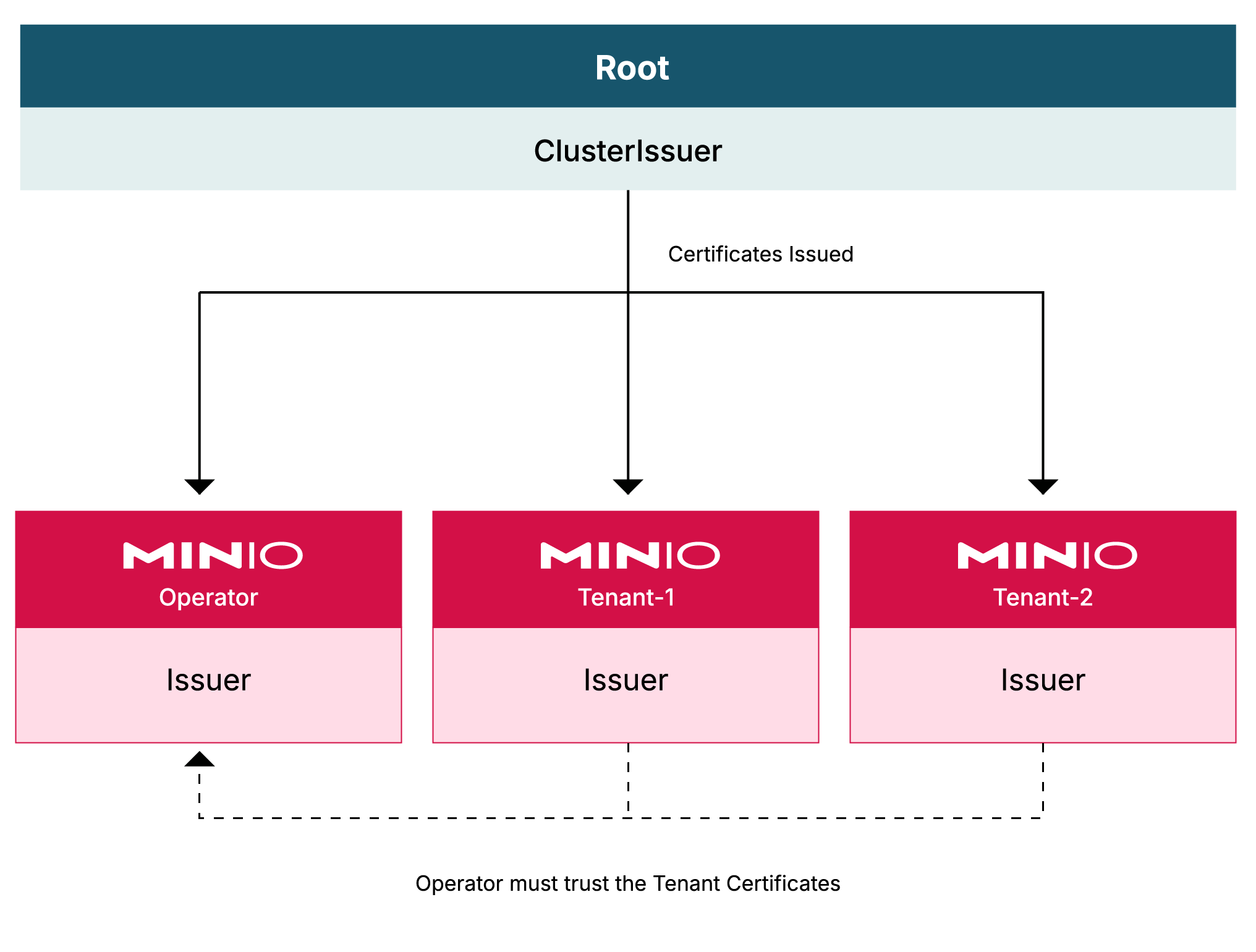
A ClusterIssuer issues certificates for multiple namespaces. An Issuer only mints certificates for its own namespace.
The following graphic depicts how cert-manager provides certificates in namespaces across a Kubernetes cluster.
- A
ClusterIssuerexists at the root level of the Kubernetes cluster, typically thedefaultnamespace, to provide certificates to all other namespaces. - The
minio-operatornamespace receives its own, localIssuer. - Each tenant’s namespace receives its own, local
Issuer. - The certificates issued by each tenant namespace must be made known to and trusted by the MinIO Operator.
Prerequisites
- A supported version of Kubernetes.
- kustomize installed
kubectlaccess to yourk8scluster
Setup cert-manager
Install cert-manager
The following command installs version 1.12.13 using kubectl.
Release 1.12.X LTS is preferred, but you may install the latest version. For more details on installing cert-manager, see their installation instructions.
Create a self-signed Cluster Issuer for the cluster
The Cluster Issuer is the top level Issuer from which all other certificates in the cluster derive.
-
Request cert-manager to generate this by creating a
ClusterIssuerresource.Create a file called
selfsigned-root-clusterissuer.yamlwith the following contents: -
Apply the resource to the cluster: